
Tablet or Laptop: Understanding Which Tool Fits Which Task

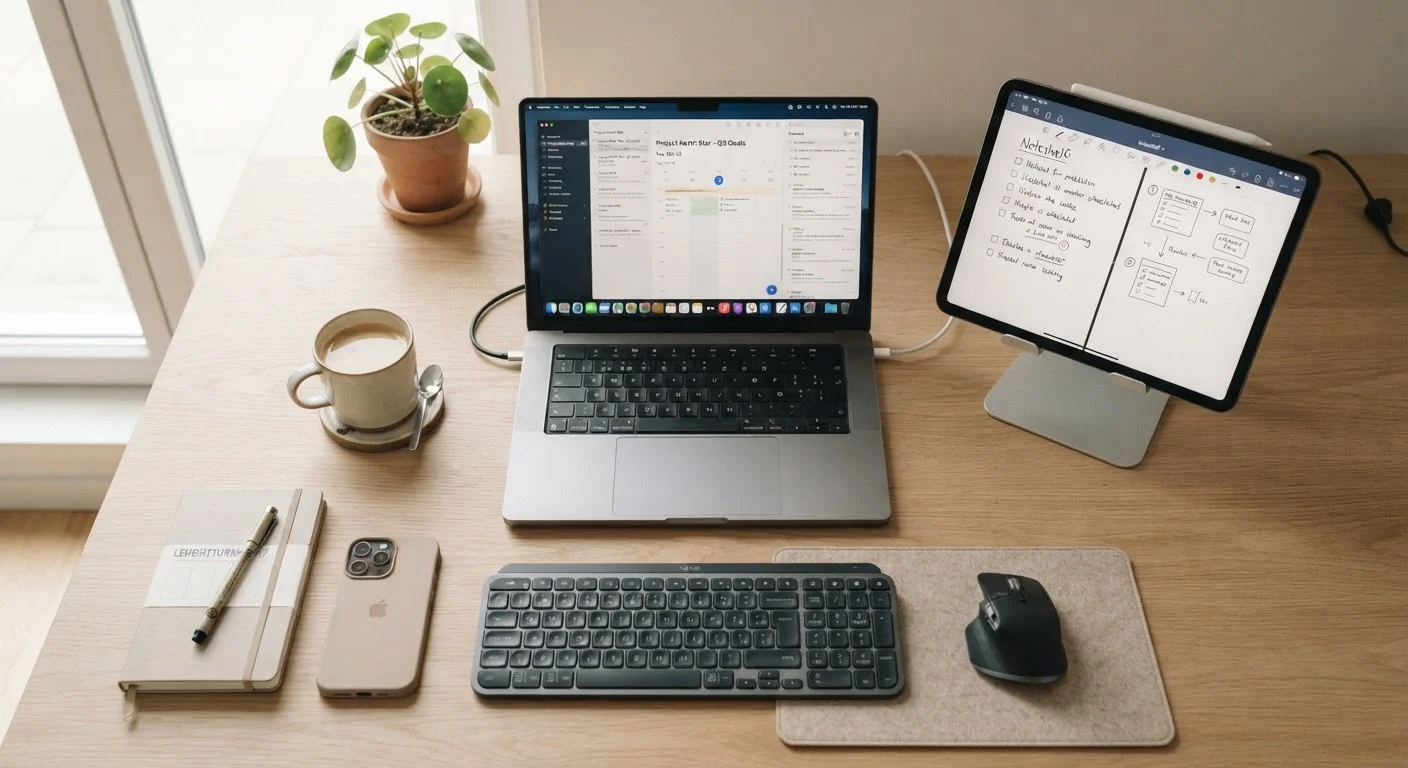
Photo: UnlockTopics.com | Unlocking Trending Content editorial
Key Takeaways
- Tablets excel at touch-first tasks like reading, sketching, and casual media — not heavy text creation.
- Laptops remain the stronger choice for multitasking, file management, and productivity software.
- A keyboard-equipped tablet can handle light writing tasks but rarely matches a laptop's ergonomic workflow.
- Battery life and portability often favor tablets; raw processing power and storage typically favor laptops.
- The right choice depends on your primary use case, not the device with the most features.
Where Tablets and Laptops Still Differ
On the surface, today's tablets and laptops look increasingly similar. Tablets have keyboards. Laptops have touchscreens. Both can video call, stream, and handle a browser tab. But underneath that surface overlap, the two device types are still built around very different assumptions about how you work.
A tablet is designed around touch interaction first. The operating system — whether iPadOS or Android — prioritizes apps, gestures, and portability. Most tablets run mobile apps that are optimized for quick tasks: checking email, reading an article, sketching an idea, or watching a show. Even with an attached keyboard, you're working within a mobile-first environment.
A laptop is built around a keyboard-and-trackpad workflow. The operating system — Windows or macOS — assumes you'll have multiple windows open, manage a real file system, and run software that goes beyond what a mobile app can offer. Tasks like formatting a long document, running a spreadsheet with complex formulas, or connecting to a work server are all smoother on a laptop.
| Criterion | Tablet | Laptop |
|---|---|---|
| Primary input method | Touchscreen, stylus | Keyboard and trackpad |
| Operating system | Mobile OS (iPadOS, Android) | Desktop OS (Windows, macOS) |
| Portability | Lighter, thinner | Heavier, bulkier |
| Multitasking | Limited window management | Full windowed multitasking |
| File system access | Restricted or hidden | Full access |
| Software range | Mobile and web apps | Full desktop software library |
| Stylus / drawing support | Common, often excellent | Rare or basic |
| Battery life (passive use) | Typically longer | Varies; often shorter |
That said, the line is blurring. For a broader look at how portable computing choices stack up, see our laptop vs. desktop comparison for additional context on form-factor trade-offs.
Matching the Device to the Task
The clearest way to think about this is to sort tasks into categories.
Tasks where tablets lead
- Reading and annotation: A tablet held in hand feels closer to a book or magazine. Stylus support makes PDF markup intuitive.
- Casual media: Streaming, browsing, and social media all work well on a tablet's touchscreen without needing a lap or a desk.
- Digital art and sketching: Pressure-sensitive stylus support on many tablets makes them a genuine creative tool for illustrators and designers.
- Portability-first scenarios: Tablets are typically lighter and thinner, making them easier to carry in a bag for commutes or travel.
Tasks where laptops lead
- Long-form writing: Typing thousands of words on a physical, full-travel keyboard is less fatiguing than a tablet keyboard cover.
- Multitasking: Side-by-side windows, drag-and-drop between apps, and taskbar management are more fluid on a laptop OS.
- File and folder management: Laptop operating systems expose a real file system; tablet OSes often hide or restrict it.
- Specialized software: Many professional tools — from accounting software to video editing suites — still have no tablet equivalent or run with reduced features on mobile.
Keyboard Cases Don't Make a Tablet a Laptop
If your workflow includes connecting external monitors, drives, or specialty peripherals, our guide on ports, hubs, and docks explains what to look for in terms of connectivity.
What to Consider Before Deciding
Before choosing, it helps to honestly audit your daily habits rather than your idealized version of how you'll use the device. Research on consumer tech use consistently shows that people overestimate how much productive work they'll do on new devices. For more on this pattern, our article on tablet ownership after the first month explores what habits actually stick.
~60%
Tablet owners who also own a laptop
Industry surveys consistently show most tablet owners use their device alongside — not instead of — a laptop or desktop, suggesting tablets frequently serve as secondary devices.
8–12 hrs
Typical tablet battery life (browsing)
Most current mid-range and higher tablets sustain 8–12 hours of active screen use, often outperforming laptops in passive media consumption scenarios.
A few practical questions worth asking yourself:
- Where will you use it most? At a fixed desk (laptop wins) or on the couch and in transit (tablet wins)?
- What software do you depend on? If you can name specific desktop apps you need, a laptop is likely necessary.
- How much do you type per day? Heavy typists will almost always find a laptop more comfortable over time.
- Is this a primary or secondary device? If you already own a desktop or laptop, a tablet as a complement makes more sense than as a replacement.
If you're leaning toward a laptop and want a thorough pre-purchase evaluation process, our laptop pre-purchase walkthrough covers screen quality, battery life, ports, and specs in plain language.
The content on this site is for informational purposes only and is not a substitute for professional advice. Always consult a qualified professional for guidance specific to your situation.