
Ports, Hubs, and Docks: Making Sense of How Accessories Connect

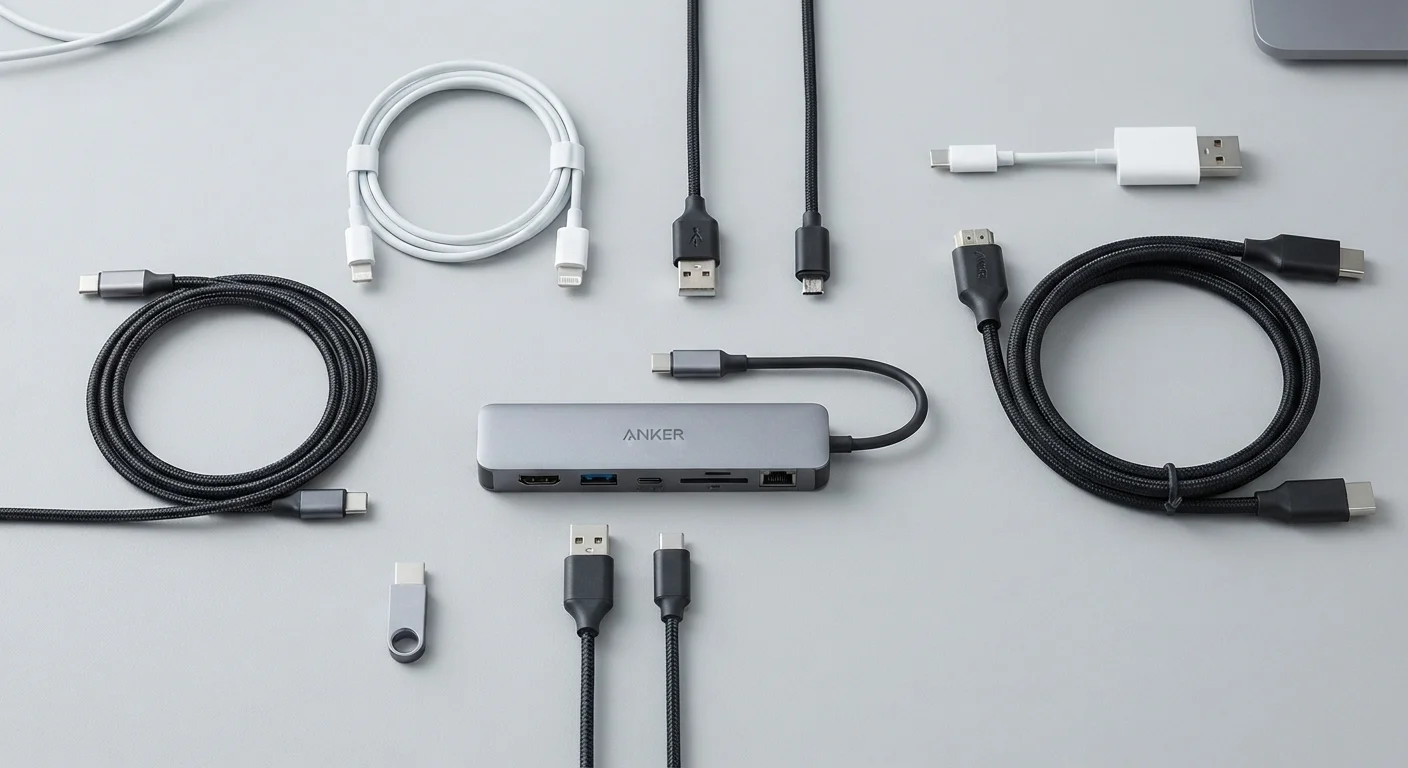
Photo: UnlockTopics.com | Unlocking Trending Content editorial
Key Takeaways
- USB-A and USB-C describe connector shapes, not data speeds — speeds depend on the version and protocol.
- Thunderbolt ports look like USB-C but support significantly faster data transfer and daisy-chaining devices.
- HDMI carries both video and audio signals to external displays in a single cable.
- A hub adds more ports but shares bandwidth; a dock typically offers dedicated power and higher performance.
- Thin laptops and tablets often ship with very few ports, making a hub or dock essential for desk use.
- Checking your device's port specs before buying accessories prevents incompatibility surprises.
The Basic Port Types and What They Do
Most computers ship with a small collection of ports, and each one serves a specific purpose. Here's what you'll commonly encounter:
- USB-A: The familiar rectangular slot. Found on most older and mid-range computers, it's used for mice, keyboards, flash drives, and charging cables. Speed varies by version — USB 3.0 (marked with a blue tab inside) is significantly faster than the older USB 2.0.
- USB-C: The smaller, oval connector that's taken over on newer laptops, tablets, and smartphones. A single USB-C port can handle data transfer, video output, and power delivery simultaneously — but only if the port supports those functions. Not all USB-C ports are equal.
- HDMI: The standard for connecting to TVs, monitors, and projectors. It carries both video and audio in one cable. Versions matter for resolution — HDMI 2.0 handles 4K at 60Hz, while HDMI 2.1 supports higher refresh rates needed for gaming displays.
- Thunderbolt: Uses the USB-C connector shape but operates on a different protocol. Thunderbolt 4 ports can transfer data at up to 40 Gbps — far faster than standard USB-C — and support daisy-chaining multiple accessories off one port. Look for the lightning bolt icon to identify them.
- DisplayPort: Common on PC monitors and graphics cards. Supports high refresh rates and multi-monitor setups via daisy-chaining.
- 3.5mm audio jack: The round headphone port. Still standard on desktops; increasingly omitted on thin laptops.
For a broader reference of accessory terminology, see The Peripheral Glossary.
USB-C Is a Shape, Not a Speed Standard
Hubs vs. Docks: When You Need More Ports
Modern thin-and-light laptops often ship with just one or two USB-C ports, leaving no room for a traditional USB-A mouse, wired Ethernet, or a second monitor. That's where hubs and docks come in.
USB hubs are compact, typically bus-powered devices that plug into one port and split it into several. A common example: plug a 7-port hub into your laptop's USB-C port and gain USB-A slots, an SD card reader, and an HDMI output. They're portable and affordable. The trade-off is shared bandwidth — all connected devices split the total data throughput of that one connection.
Docking stations are larger and designed for desk setups. They typically connect via a Thunderbolt or USB-C cable and provide dedicated ports for power delivery (charging the laptop), HDMI or DisplayPort outputs, Gigabit Ethernet, multiple USB-A and USB-C ports, and audio jacks. A good dock lets you plug in one cable and have your full desk environment ready instantly.
One Cable Should Do It All at Your Desk
If you're weighing whether your device needs a dock, it's worth also considering the overall device type. See Laptop vs. Desktop: Which Setup Fits Your Life for how port availability factors into that decision.
Reading Your Computer's Port Specs
Knowing what your device actually supports prevents wasted purchases. Here's what to check before buying any hub, dock, or cable:
- Identify your ports by shape and markings. A USB-C port marked with a Thunderbolt lightning bolt icon supports Thunderbolt speeds and features. An unmarked USB-C port may only support USB 3.2 speeds — still useful, but not the same.
- Check the spec sheet for video output support. Not all USB-C ports can output to a monitor. Look for "USB-C with DisplayPort Alt Mode" or "Thunderbolt" in the specs to confirm video capability.
- Match cable and device versions. A USB 3.2 cable in a USB 2.0 port delivers USB 2.0 speeds. The slowest component in the chain determines the actual performance.
- Consider power delivery (PD). If you want to charge your laptop through your hub or dock, confirm that the hub supports USB Power Delivery and that the wattage matches your laptop's requirement.
40 Gbps
Maximum Thunderbolt 4 data transfer speed
Thunderbolt 4 supports up to 40 gigabits per second, compared to 10 Gbps for standard USB 3.2 Gen 2, according to Intel's published specifications.
USB 3.0
First USB standard to reach 5 Gbps
USB 3.0, introduced in 2008, increased transfer speeds tenfold over USB 2.0's 480 Mbps ceiling, marking the shift to high-speed peripheral connections.
If your device is a tablet that doubles as a laptop replacement, port selection becomes especially important. Tablet or Laptop: Understanding Which Tool Fits Which Task covers how connectivity differences affect real-world use.
For more on how your devices connect more broadly — including wireless options — Mobile Data, Wi-Fi, and 5G explains the wireless side of the picture.
Frequently Asked Questions
The content on this site is for informational purposes only and is not a substitute for professional advice. Always consult a qualified professional for guidance specific to your situation.