SSD vs. HDD: Why Your Storage Type Changes More Than Just Speed

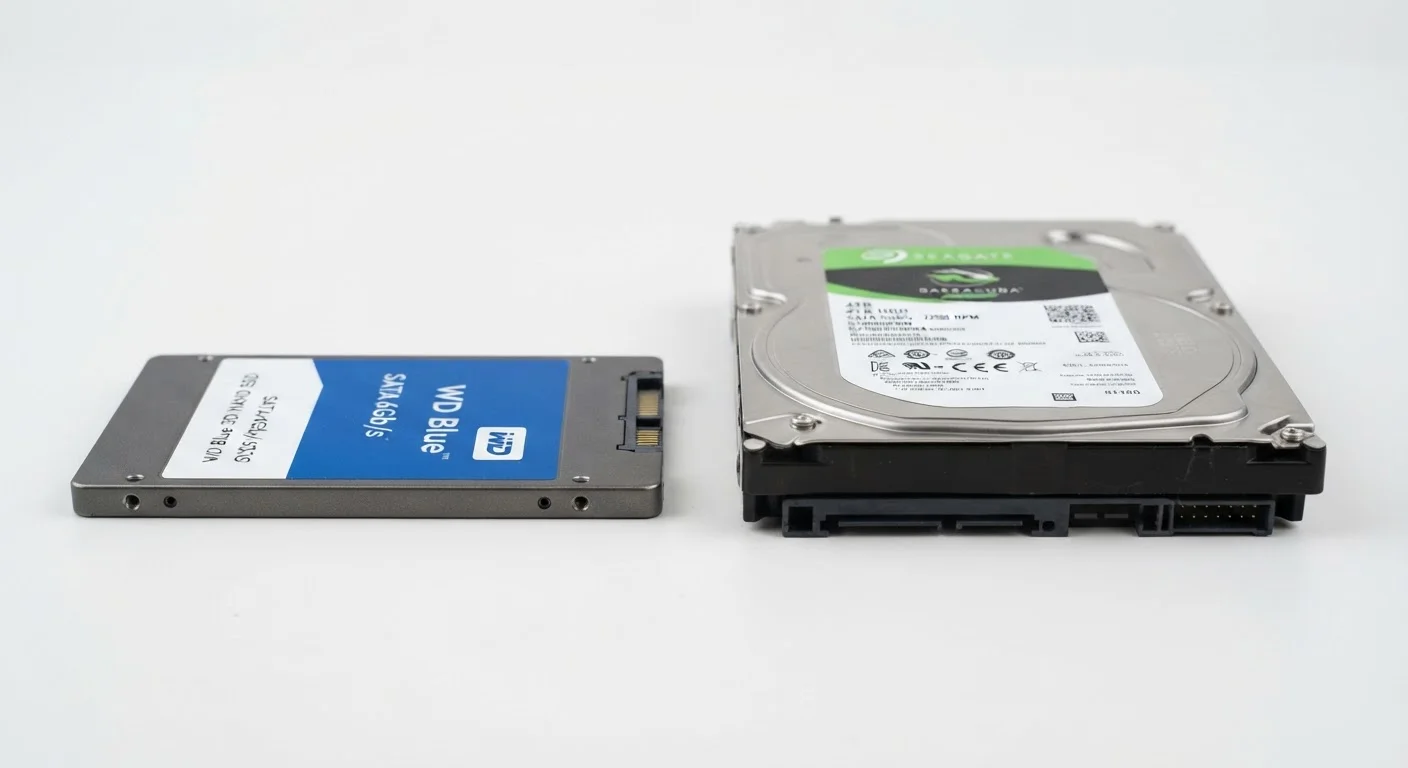
Photo: UnlockTopics.com | Unlocking Trending Content editorial
Key Takeaways
- SSDs use flash memory with no moving parts; HDDs use spinning magnetic disks and a read/write arm.
- SSDs are significantly faster for loading files and booting an operating system.
- HDDs typically offer more storage capacity for the same price.
- SSDs are more resistant to physical shock and vibration damage than HDDs.
- HDDs are more prone to mechanical failure over time due to their moving components.
- The right choice depends on your budget, storage needs, and how you use your computer.
What's Actually Inside Each Drive
The most important difference between an SSD and an HDD isn't speed — it's the underlying technology, and that one gap ripples into nearly every other characteristic.
An HDD (Hard-Disk Drive) stores data on spinning magnetic platters, much like a record player. A tiny mechanical arm moves across those platters to read or write data. Because it's mechanical, it takes a measurable fraction of a second for the arm to reach the right spot — a delay called seek time.
An SSD (Solid-State Drive) has no moving parts at all. It stores data in flash memory chips — the same basic technology used in USB drives, just much faster and more sophisticated. Without a physical arm to move, data can be accessed almost instantly from any location on the drive.
That mechanical vs. electronic distinction is the root cause of nearly every practical difference between the two. For a broader look at how storage fits into your computer's overall specs, see what RAM, storage, and processors actually mean.
How They Compare Across Key Criteria
Understanding the trade-offs across speed, cost, durability, and lifespan helps you decide which type makes sense for your situation.
| Criterion | SSD | HDD |
|---|---|---|
| Technology | Flash memory, no moving parts | Spinning magnetic platters |
| Read/Write Speed | Very fast | Moderate |
| Boot Time | Under 15 seconds (typical) | 30–60+ seconds (typical) |
| Cost per Gigabyte | Higher | Lower |
| Noise | Silent | Audible hum and clicking |
| Shock Resistance | High — no moving parts | Low — arm can scratch platters |
| Failure Mode | Write cycle limit (years of typical use) | Mechanical wear over time |
| Best Use | OS, apps, everyday performance | Bulk file and archive storage |
Boot times illustrate the speed gap clearly. A computer with an SSD typically loads the operating system in under 15 seconds. The same system with an HDD often takes 30–60 seconds or longer. That gap shows up every time you open a large file, launch an application, or search your drive.
4–5×
Typical SSD vs. HDD sequential read speed advantage
Consumer SATA SSDs commonly read at 500 MB/s vs. roughly 100–120 MB/s for a typical 7,200 RPM HDD.
~$0.03–0.05
Approximate cost per GB for HDD storage
HDD prices per gigabyte have remained significantly lower than SSD prices, making them attractive for large-capacity backup drives.
0 dB
Acoustic output of an SSD during operation
SSDs produce no mechanical noise because they contain no spinning components or moving read/write heads.
Durability, Noise, and Everyday Use
Because an HDD contains spinning platters and a moving read/write arm, it produces an audible hum during operation and a faint clicking sound when seeking data. In a quiet room, you may notice it. SSDs operate in complete silence.
Physical resilience is another meaningful difference. A laptop with an HDD is vulnerable to data loss if dropped or jolted while the drive is active — the arm can scratch the platters, causing permanent damage. SSDs have no such vulnerability, which is a real advantage for anyone who travels with a laptop or works in places where the device might get bumped.
Longevity follows a different pattern for each type. HDDs can fail when mechanical components wear out — a risk that generally rises after several years of continuous use. SSDs have a finite number of write cycles for each memory cell, but under typical consumer workloads, most SSDs are rated to last well beyond five years. Neither type is permanent, which is why regular backups matter regardless of which you choose. The guide on keeping a computer running well for years covers storage maintenance alongside other habits that extend device life.
It's also worth knowing that storage pressure — a nearly full drive — slows down both types, though the effect is more pronounced on HDDs. If you're curious how storage fills up on smartphones too, the article on RAM, internal storage, and cloud storage is a useful companion read.
A Note on Drive Lifespan and Backups
Which One Fits Your Situation?
For most people buying or upgrading a laptop or desktop computer today, an SSD is the practical default for the primary drive — the one where your operating system and frequently used apps live. The performance difference in daily use is immediately noticeable, and the price gap between SSD and HDD has narrowed considerably in recent years.
HDDs remain a sensible choice when you need large amounts of storage and access speed isn't the priority. External HDDs used for photo archives, video backups, or bulk file storage still offer excellent value per gigabyte. Some desktop computers use both: an SSD for the operating system and a larger HDD for files.
Storage type is one piece of the broader performance picture. Graphics processing is another — if you're weighing other computer specs, the article on integrated vs. dedicated graphics explains when that distinction matters in plain terms.
The content on this site is for informational purposes only and is not a substitute for professional advice. Always consult a qualified professional for guidance specific to your situation.