RAM, Storage, and Processors: What Those Specs Actually Mean

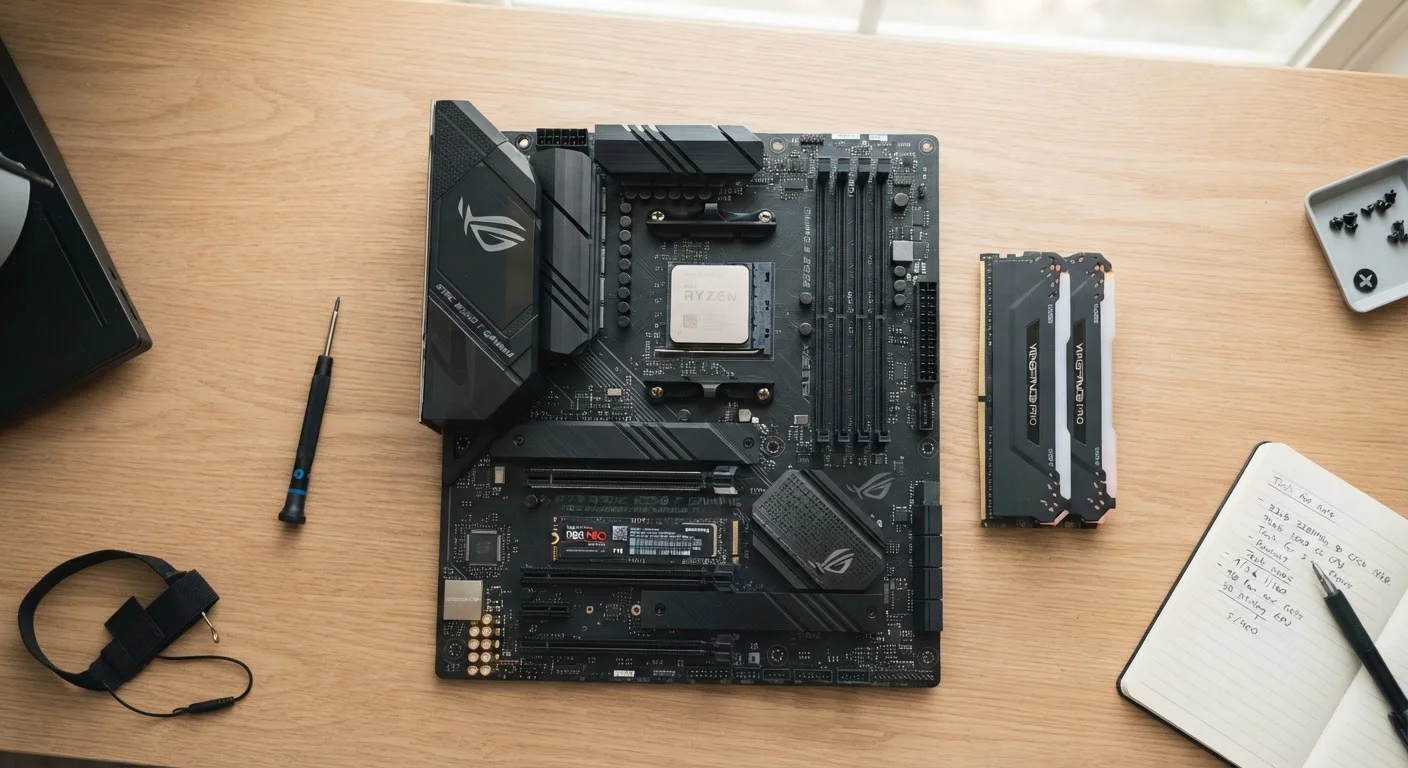
Photo: UnlockTopics.com | Unlocking Trending Content editorial
Key Takeaways
- RAM determines how many tasks your computer can handle simultaneously without slowing down.
- Storage capacity tells you how much data — files, photos, apps — you can keep on the device.
- The processor (CPU) controls the speed and efficiency of everything your computer does.
- More RAM and a faster CPU improve day-to-day responsiveness; more storage just means more room.
- SSDs are significantly faster than traditional hard drives and improve overall system speed.
- For most everyday users, 8–16 GB of RAM and an SSD are the most impactful specs to prioritize.
RAM: Your Computer's Active Workspace
Think of RAM as your physical desk. The larger the desk, the more projects you can spread out at once without constantly shuffling papers in and out of a drawer. When you open a browser with 15 tabs, stream music, and work on a document simultaneously, your computer draws on RAM to keep all of it instantly accessible.
When RAM runs low, your computer starts borrowing space from storage to compensate — a process called virtual memory or paging. This is far slower than actual RAM, which is why machines with insufficient memory feel sluggish when you push them.
For most people doing everyday tasks, 8 GB of RAM is a reasonable starting point. Power users or anyone juggling large creative files should consider 16 GB or more. It's one of the most impactful specs for how snappy a computer feels in real use.
Check Upgradeability Before You Buy
For a comparison of how RAM works across devices, see our mobile storage explainer, which untangles RAM, internal storage, and cloud storage on phones and tablets.
Storage: The Filing Cabinet That Holds Everything
Storage is where your operating system, applications, photos, documents, and downloads live permanently. Unlike RAM, it doesn't clear when you shut down. The two main types are:
- SSD (Solid-State Drive): Uses flash memory chips. Fast, quiet, and durable — no moving parts. Most modern computers ship with one.
- HDD (Hard Disk Drive): Uses spinning magnetic platters. Slower and more mechanical, but typically cheaper per gigabyte. Still common in budget desktops or as secondary storage.
Storage capacity is measured in gigabytes (GB) or terabytes (TB) — 1 TB equals 1,000 GB. A computer with 256 GB of SSD storage is fast but fills up quickly if you store a lot of video. One with 1 TB of HDD storage holds more, but feels noticeably slower.
~5x
Speed difference: SSD vs. HDD sequential reads
Typical SSDs read data at 400–550 MB/s compared to 80–160 MB/s for traditional hard drives, according to published drive benchmarks.
16 GB
RAM increasingly common in new mainstream laptops
As of recent product generations, 16 GB has become a standard configuration in mid-range consumer laptops from major manufacturers.
4–8
CPU cores typical in everyday consumer processors
Most consumer-grade processors sold for general-purpose computers ship with 4 to 8 cores, sufficient for typical multitasking workloads.
The type of storage often matters more than the sheer capacity for day-to-day speed. An SSD with 256 GB will typically feel much faster than an HDD with 1 TB, even though the HDD holds four times as much data.
The Processor: Everything Runs Through Here
The CPU — Central Processing Unit — executes every instruction your computer carries out, from loading a webpage to rendering a spreadsheet formula. Two numbers dominate CPU specs:
- Clock speed (GHz): How many cycles per second the chip can complete. Higher generally means faster single tasks — though modern architecture improvements matter just as much as raw GHz.
- Core count: How many independent processing units the chip contains. More cores help when running multiple demanding tasks at the same time, like video editing while exporting a file.
For most everyday computing, a recent-generation processor with 4–8 cores is more than capable. Where the CPU choice becomes critical is in demanding workloads: data science, 3D rendering, professional video editing, or gaming at high settings.
Processors also affect battery life on laptops. Chips designed for energy efficiency can dramatically extend how long a laptop runs between charges — a real-world consideration that raw benchmark numbers don't always reflect.
To understand how graphics processing fits alongside the CPU, see our guide on integrated vs. dedicated graphics.
“The single biggest performance upgrade most people can make to an aging computer isn't a new processor — it's replacing a spinning hard drive with an SSD. The subjective experience of speed changes dramatically.”
— Consumer Technology Reviewers (general consensus), Hardware analysts across multiple independent technology publications
Putting It All Together When You Shop
These three specs interact constantly. A fast processor paired with too little RAM will still stutter under load. Ample RAM on a computer with only an HDD will still feel slow at startup. Here's a practical framework for reading a spec sheet:
- Prioritize RAM and SSD first for everyday responsiveness — these have the most noticeable effect on daily feel.
- Check storage type before capacity — an SSD at any reasonable size outperforms an HDD for most users.
- Match the CPU to your actual workload — an ultra-powerful chip is wasted on basic tasks, and a budget chip may limit you if your needs grow.
Understanding these basics also applies when maintaining the computer you already own. Keeping software lean and avoiding unnecessary background processes lets your existing RAM and CPU do more. See our guide to keeping a computer running well for years for practical maintenance habits that preserve performance over time.
Specs Alone Don't Tell the Whole Story
Frequently Asked Questions
The content on this site is for informational purposes only and is not a substitute for professional advice. Always consult a qualified professional for guidance specific to your situation.