
Mobile Storage Explained: RAM, Internal Storage, and Cloud — What's the Difference?

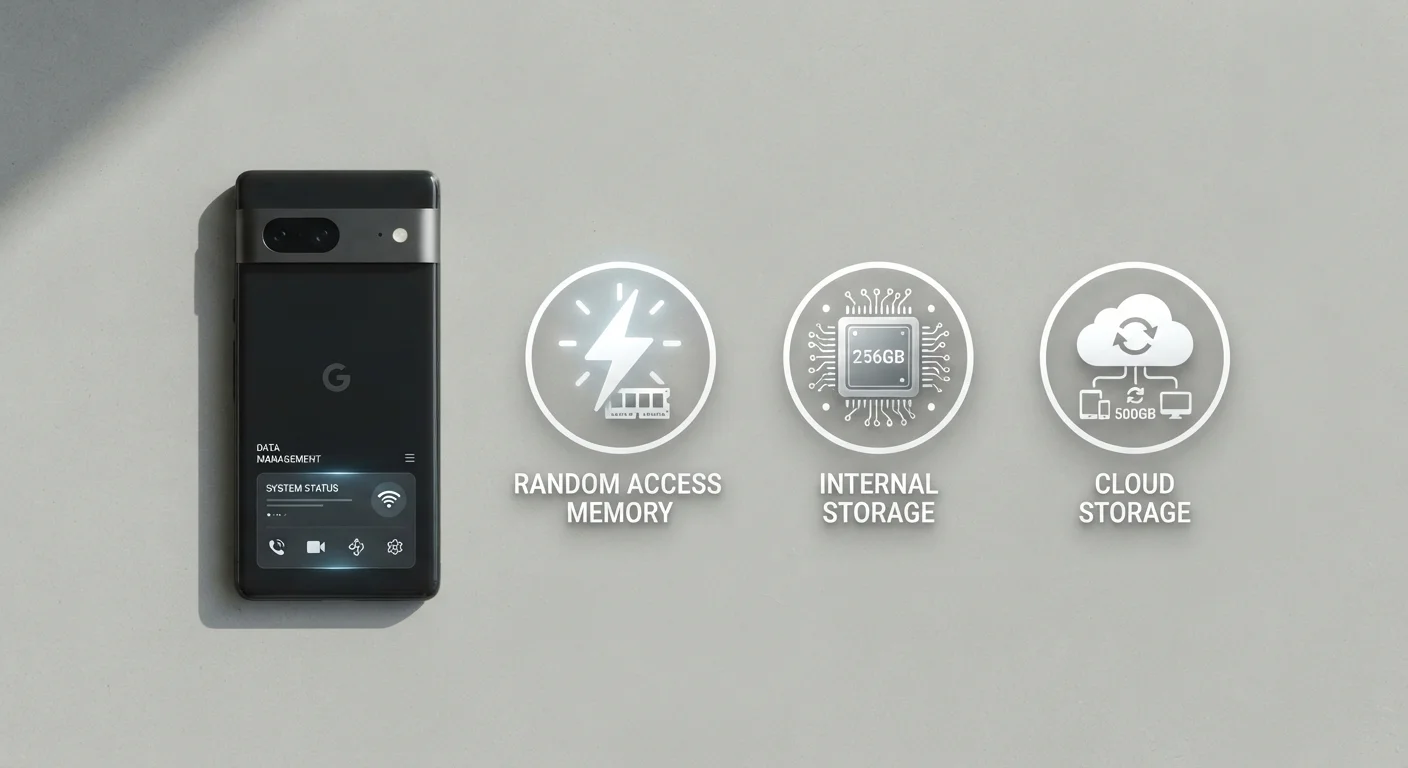
Photo: UnlockTopics.com | Unlocking Trending Content editorial
Key Takeaways
- RAM determines how smoothly your phone multitasks, not how much you can save.
- Internal storage is where your photos, apps, and files permanently live.
- Cloud storage extends your capacity remotely and enables backup and sync across devices.
- Running low on RAM slows performance; running low on internal storage prevents saving new data.
- More RAM doesn't mean more space for photos — those are entirely separate systems.
RAM: Your Phone's Short-Term Working Memory
Think of RAM (Random Access Memory) as your phone's mental workspace. It holds the apps and data your device is actively using at any given moment — the browser tab you just had open, the music streaming in the background, the chat app waiting for a message. The more RAM your phone has, the more of these tasks it can juggle without slowing down or forcing apps to reload.
When you switch between apps, RAM is what lets them stay ready instead of starting from scratch. A phone with limited RAM has to constantly flush out apps to make room for new ones, which is why you might notice that older devices reload apps every time you return to them.
Crucially, RAM doesn't store anything permanently. The moment you restart your phone, everything in RAM is cleared. It's entirely separate from where your photos and files live. For a deeper look at how RAM compares across devices, see our guide to RAM's real-world limits.
Signs You're Running Low on RAM
Internal Storage: The Permanent Home for Your Data
Internal storage is where everything on your phone actually lives long-term: apps, photos, videos, music, documents, and the operating system itself. Unlike RAM, internal storage retains its contents when the phone is powered off. It's measured in gigabytes (GB) or terabytes (TB), and it's what phone manufacturers list when they advertise a model as "128 GB" or "256 GB."
Modern smartphones use a type of flash memory called eMMC or UFS, which functions similarly to the solid-state drives found in laptops — fast, silent, and durable. Understanding how SSD-style storage differs from older hard drives can help put this in perspective.
One important caveat: the listed capacity is never fully available to you. The operating system and pre-installed apps consume a meaningful chunk — sometimes 10–20 GB or more — before you ever save a single file.
128 GB
Common baseline internal storage in modern mid-range smartphones
As of recent device generations, 128 GB has become the standard entry-level capacity for many mainstream smartphone models.
10–20 GB
Typical storage used by the OS before user files
Operating systems and pre-installed apps routinely consume this amount of a phone's advertised capacity right out of the box.
8 GB
RAM found in many current mid-range phones
Mid-range smartphones commonly ship with 6–8 GB of RAM, enough for smooth everyday multitasking according to general industry benchmarks.
Cloud Storage: Remote Space You Access Over the Internet
Cloud storage keeps your data on servers maintained by a third party, accessed over the internet rather than stored physically on your phone. Services like iCloud, Google One, and similar platforms let you upload photos, documents, and backups so they're reachable from any device with an internet connection.
The practical benefit is twofold: you can free up internal storage by offloading files to the cloud, and you create a backup in case your phone is lost or damaged. Many phones now automatically sync photos and contacts to the cloud in the background, though it's worth understanding exactly what gets saved — and what doesn't. Our guide on backing up a smartphone the right way walks through those details.
The trade-off is dependency on a network connection. Cloud files aren't instantly accessible without Wi-Fi or mobile data. For a primer on how those connections work, see how your phone connects to the internet.
Free Cloud Tiers Have Limits
How All Three Work Together
When you open a photo editing app, internal storage provides the app file and the image you're working on. RAM loads both into active memory so edits feel instant. When you're done, the finished photo is saved back to internal storage — or synced to cloud storage if auto-backup is enabled.
These three systems work in parallel. A phone with ample RAM but limited internal storage will multitask well but run out of space for new content. A phone with large internal storage but little RAM may hold plenty of files yet feel sluggish when switching between apps. Cloud storage fills the gap when the phone's physical capacity isn't enough, but it can't compensate for low RAM.
When evaluating a phone's specs, consider all three dimensions independently rather than treating them as interchangeable. For a broader look at how specs translate to real-world performance, the breakdown of RAM, storage, and processor specs offers useful context that applies across devices.
Frequently Asked Questions
The content on this site is for informational purposes only and is not a substitute for professional advice. Always consult a qualified professional for guidance specific to your situation.