Why Paying for More RAM Doesn't Always Make Your Computer Faster

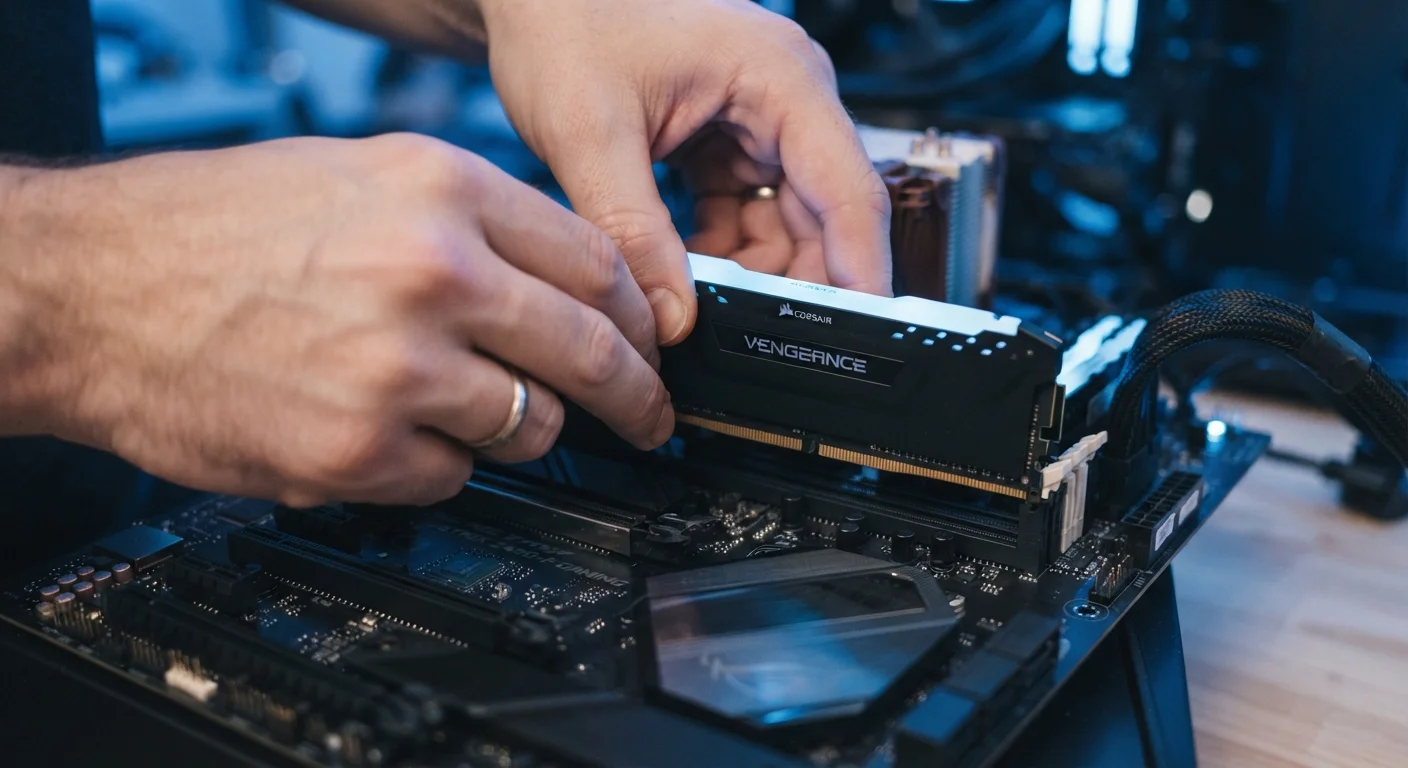
Photo: UnlockTopics.com | Unlocking Trending Content editorial
Key Takeaways
- RAM only speeds up your computer if it is currently the bottleneck causing slowdowns.
- A slow processor or aging hard drive can limit performance regardless of how much RAM you have.
- Most everyday computing tasks run well within 8–16 GB of RAM on modern systems.
- Upgrading RAM helps most when your system is actively running out of available memory.
- Background software and storage health often slow computers more than insufficient RAM.
The RAM Upgrade Appeal — and Its Limits
When a computer starts feeling sluggish, RAM (Random Access Memory — your system's short-term working memory) is often the first upgrade people consider. It's affordable, easy to install on many machines, and sounds like a logical fix. But RAM is only one piece of a larger performance puzzle, and adding more of it only helps when memory is actually the thing holding your system back.
Think of RAM as the surface area of a work desk. More desk space lets you spread out more documents at once — but if the person doing the work (the processor) is slow, or the filing cabinet (your storage drive) takes forever to retrieve anything, a bigger desk won't make the job finish faster.
Understanding this relationship is essential before spending money on an upgrade. For a clear foundation on what these specs actually mean, see our guide to RAM, storage, and processors.
Myth
More RAM always makes a computer faster, no matter the situation.
Fact
RAM only improves speed when the system is genuinely running short on memory — otherwise, other components are the limiting factor.
RAM acts as temporary working space for active tasks. When you have enough for what you're doing, adding more sits idle and contributes nothing to speed. The processor, storage drive, and software overhead all influence real-world performance equally or more significantly in most everyday scenarios.
Myth
If my computer is slow, the first thing I should upgrade is the RAM.
Fact
Diagnosing the actual bottleneck — CPU usage, storage speed, or memory consumption — should come before any upgrade decision.
Windows Task Manager and macOS Activity Monitor both show real-time memory, CPU, and disk usage. If RAM usage sits below 80% during slowdowns, the problem lies elsewhere. Replacing a mechanical hard drive with an SSD, for example, is frequently the single most impactful upgrade for older machines.
Myth
Doubling your RAM will roughly double your computer's speed.
Fact
Performance gains from RAM are non-linear and context-dependent — in many cases the difference is imperceptible.
Speed improvements from RAM follow a diminishing returns curve. Going from 4 GB to 8 GB on a system that was genuinely memory-constrained can feel transformative. Going from 16 GB to 32 GB on a machine used for email and web browsing will likely produce no measurable change in day-to-day experience.
Myth
RAM and storage are basically the same thing — more of either makes everything run better.
Fact
RAM and storage serve fundamentally different roles; upgrading one does not substitute for the other.
RAM holds data that the processor is actively working with right now — it's fast and temporary. Storage (such as an SSD or HDD) holds everything permanently, including the operating system and all your files. A computer with abundant RAM but a slow storage drive will still feel sluggish when launching programs or booting up, because those operations depend on storage speed, not RAM capacity.
What Actually Causes Slowdowns
The most common real-world culprits behind a slow computer are often overlooked in favor of the RAM narrative.
3–5×
Speed difference: SSD vs. traditional HDD
Sequential read speeds on consumer SSDs typically reach 500 MB/s or more, compared to roughly 100–150 MB/s for mechanical hard drives, making storage type a major performance variable.
16 GB
RAM considered sufficient for most modern workloads
Industry guidance from major OS developers and system builders generally points to 16 GB as the practical sweet spot for everyday computing, multitasking, and light creative work.
- The processor (CPU): If your CPU is underpowered or aging, it becomes the chokepoint. No amount of RAM compensates for a processor that can't handle the workload.
- Storage type and health: Computers with traditional spinning hard drives (HDDs) are dramatically slower at loading programs and files than those with solid-state drives (SSDs). Swapping an HDD for an SSD often delivers a more noticeable speed improvement than adding RAM.
- Background software: Startup programs, browser extensions, and background processes quietly consume both RAM and CPU resources, creating slowdowns that more RAM won't solve.
- Thermal throttling: Overheating causes processors to deliberately slow down to protect themselves. Dust buildup is a frequent, fixable cause — see our computer maintenance guide for practical steps.
Check Before You Upgrade
It's also worth noting that RAM itself has a speed rating (measured in MHz or MT/s). Mismatched or very slow RAM can limit performance even when the amount looks sufficient on paper.
When More RAM Actually Does Help
There are genuine scenarios where adding RAM delivers a meaningful improvement. The key is knowing how to identify them.
If your computer is actively using all available RAM — which you can check in Task Manager on Windows or Activity Monitor on macOS — it begins using a portion of your storage drive as overflow memory, a process called paging or using a swap file. Storage is far slower than RAM, so the system bogs down noticeably. In this case, adding RAM directly addresses the bottleneck.
Common situations where RAM upgrades pay off include: running many browser tabs simultaneously, working with large spreadsheets or documents, video editing at moderate resolutions, and running virtual machines. Users doing these tasks on a system with only 4–8 GB may see real gains by upgrading to 16 GB.
However, going from 16 GB to 32 GB for general web browsing and document work is unlikely to produce any noticeable difference for most users. The difference between RAM and storage types also helps clarify why raw gigabyte counts don't tell the whole story.
Not All Computers Allow RAM Upgrades
The content on this site is for informational purposes only and is not a substitute for professional advice. Always consult a qualified professional for guidance specific to your situation.