
How Smartphones Decide What to Show You First

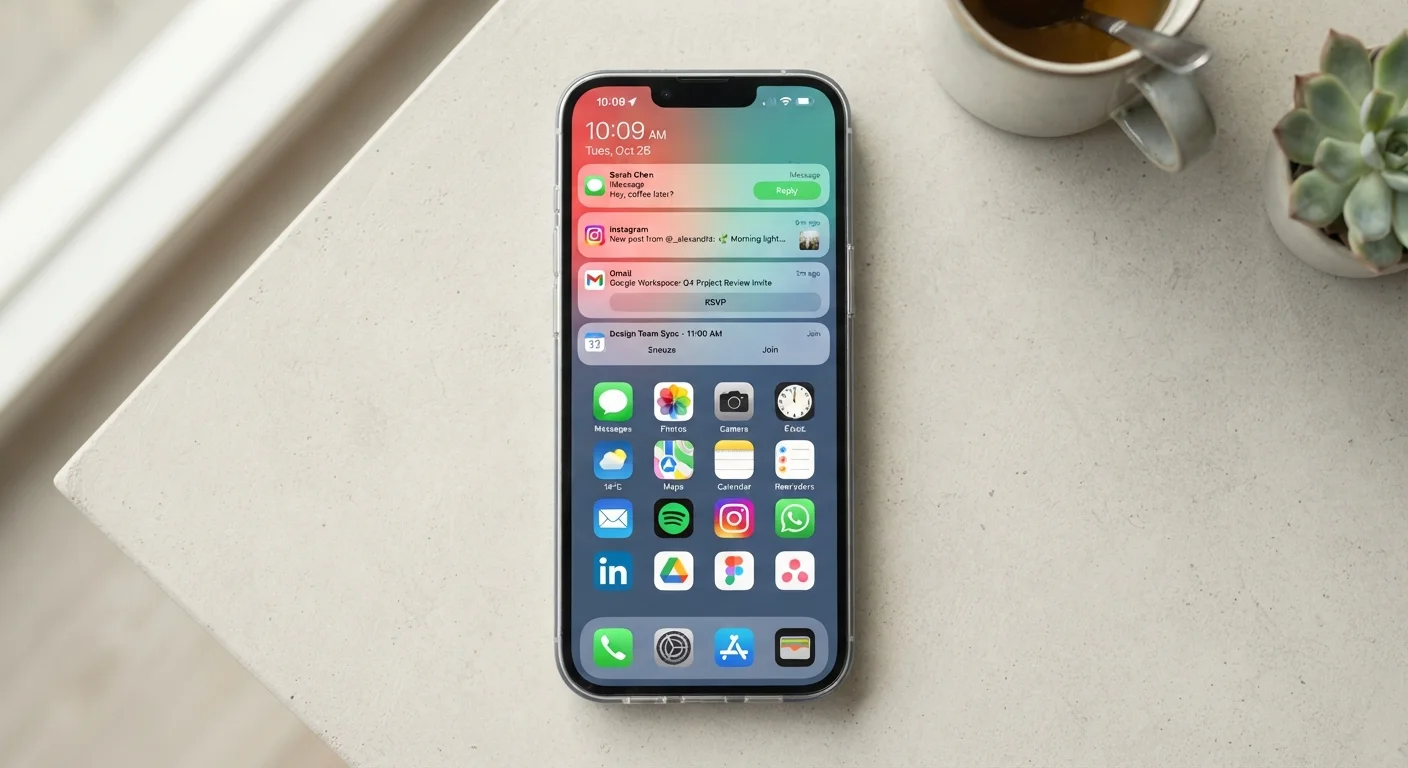
Photo: UnlockTopics.com | Unlocking Trending Content editorial
Key Takeaways
- Your phone ranks notifications using signals like app priority, time sensitivity, and your past interaction patterns.
- Default apps receive privileged system access that gives them a head start in how quickly they respond.
- Home screen layout and app suggestions are shaped by your usage habits, not chosen at random.
- You can actively adjust most of these systems through your phone's settings.
- Understanding these systems helps you take back control of your own attention.
The Invisible Ranking Engine Running Your Phone
Every time you wake your phone, you're seeing the output of a quiet decision-making process. Which notifications are shown first? Which app opens when you tap a link? What's suggested in the search bar before you type a word? None of these outcomes are accidental — they're the result of layered systems built into your operating system.
Understanding how these systems work doesn't require a technical background. It just requires knowing what signals your phone is paying attention to, and why those signals matter for your daily experience.
80+
Average daily phone unlocks per user
Research from various mobile analytics firms consistently estimates the average smartphone is unlocked between 80 and 150 times per day, making prioritization systems highly consequential.
~50%
Notifications never tapped by recipients
Industry research on mobile engagement suggests roughly half of all push notifications are dismissed without interaction, influencing how OS algorithms eventually re-rank alert visibility.
How Notification Ranking Works
When multiple notifications arrive, your phone doesn't treat them equally. Both Android and iOS assign priority levels to notifications. App developers can tag their alerts as high, default, low, or silent — and the OS uses these tags to decide where an alert appears and whether it makes a sound.
But the system doesn't stop there. Over time, your phone tracks whether you engage with a particular app's notifications. If you routinely dismiss alerts from a certain app without tapping them, the OS may quietly downgrade their visibility. Conversely, apps you frequently interact with tend to get more prominent placement.
On Android, this is handled through notification channels — distinct categories within a single app (like 'Messages' vs. 'Promotions' in an email app) that can each carry different priority settings. iOS uses a similar concept with notification grouping and scheduled delivery options.
Audit Your Notification Settings Periodically
Default Apps and Privileged Access
When you tap a web link, your phone has to decide which app opens it. That decision comes down to your default app setting. The default browser, email client, or map application receives deeper system integration than non-default alternatives — meaning it can respond faster and handle more tasks automatically.
This matters because default status isn't always set by you. Out-of-the-box, phones come with pre-assigned defaults — often the manufacturer's or OS provider's own apps. You can change these, but many users never do, leaving the original choices in place indefinitely.
To check or change your defaults, look in Settings → Apps → Default Apps on Android, or Settings → → Default Browser/Mail on iOS. Choosing your own preferred apps here directly affects which tool gets the first look at your actions. For a deeper look at how the two major platforms handle these choices differently, see how Android and iOS approach privacy and system defaults.
Adaptive Behavior: When Your Phone Learns Your Habits
Modern smartphones go beyond static rules — they adapt. A feature called adaptive battery (Android) or Background App Refresh controls (iOS) monitors which apps you use regularly and limits background activity for the ones you rarely open. This keeps frequently used apps snappier while conserving power for less-used ones.
The same logic applies to app suggestions. If you open a fitness app every morning at 7 a.m., your phone may begin surfacing it automatically during that window — on your lock screen, home screen dock, or in search. These suggestions come from on-device pattern recognition, not from external servers reading your data in real time.
It's worth noting that these adaptive systems can reinforce existing habits. The apps you already use get easier to open, while unfamiliar apps stay buried. If you want to deliberately build new habits around a different app, pinning it to your home screen and using it consistently for a week or two is often enough to shift the pattern. You can also explore how screen time tools measure — and sometimes miss — these usage patterns.
On-Device Learning vs. Cloud-Based Personalization
Taking Back Control
These systems aren't fixed. Every major setting that shapes what your phone shows you first can be adjusted:
- Notification priority: Go to Settings → Notifications → and change the alert style, sound, and importance level.
- App suggestions: On Android, long-press the home screen to access Launcher settings and disable 'App Suggestions.' On iOS, go to Settings → Siri & Search to manage which apps can appear as suggestions.
- Default apps: Set them deliberately rather than accepting pre-installed choices.
- Battery optimization: In Android's Battery settings, you can mark specific apps as 'Unrestricted' to ensure they run without background limits.
The goal isn't to fight the system — it's to align it with your actual priorities rather than the phone's default assumptions. Even small adjustments here can meaningfully change how your phone feels to use day-to-day. If you haven't explored the full range of built-in tools your phone offers, your phone's accessibility features are another layer worth looking into for added control and comfort.
Frequently Asked Questions
The content on this site is for informational purposes only and is not a substitute for professional advice. Always consult a qualified professional for guidance specific to your situation.