
Getting More from Your Phone's Accessibility Features

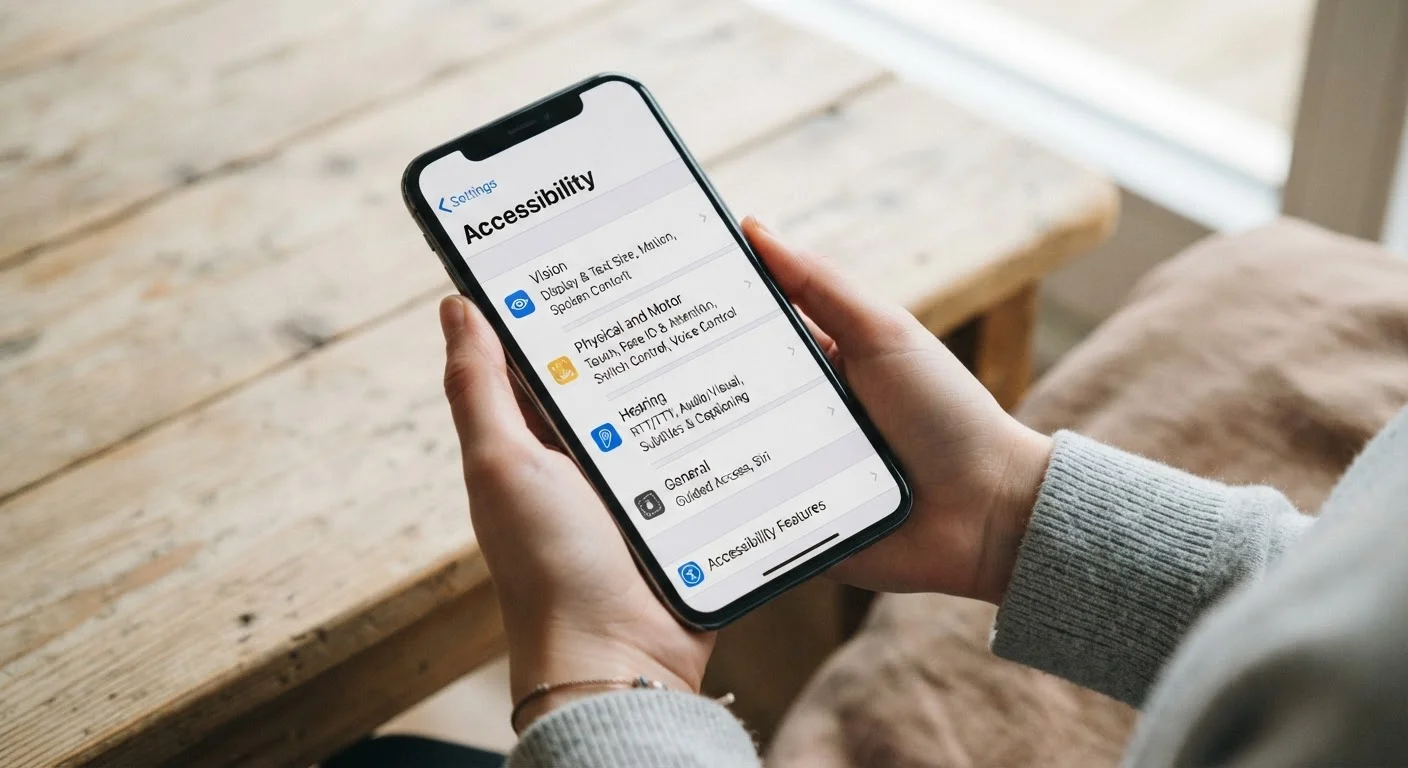
Photo: UnlockTopics.com | Unlocking Trending Content editorial
Key Takeaways
- Accessibility features are built into every modern smartphone and available to all users by default.
- Many tools — like display zoom, live captions, and voice control — offer practical everyday benefits.
- Exploring these settings takes minutes and can meaningfully improve comfort and daily usability.
- Both iOS and Android offer robust accessibility menus, though the names and locations vary slightly.
- You don't need a specific condition or diagnosis to benefit from these tools.
Why Accessibility Features Deserve a Second Look
Most people set up a phone, install their usual apps, and never visit the Accessibility menu again. That's a significant missed opportunity. These settings weren't designed only for users with disabilities — they were designed to make phones work better for a wider range of situations, preferences, and environments.
Think about the last time you struggled to read small text on a bright day, wished your phone would read a long article aloud, or wanted to use your device without touching the screen. Accessibility features address all of these. They're mature, well-tested tools baked into the operating system — not third-party add-ons.
If you're setting up a new device and haven't reviewed these settings yet, our guide to switching phones without losing your data is a good companion read. Once your basics are in order, carving out a few minutes for accessibility settings can make a noticeable difference in daily use.
Start With One Feature at a Time
The seven features below are practical starting points — not an exhaustive list. Both iOS (under Settings > Accessibility) and Android (under Settings > Accessibility or General Management) give you access to all of them, though the exact labels may differ slightly by device.
Seven Accessibility Features Worth Turning On Today
Display Zoom and Text Size
Small text is one of the most common sources of phone frustration, and the fix is built right in. Both iOS and Android allow you to independently adjust text size and display zoom — the former scales fonts across apps, while the latter scales the entire interface including icons and buttons.
On iOS, go to Settings > Accessibility > Display & Text Size for text adjustments, and Settings > Display & Brightness > Display Zoom for interface scaling. On Android, look under Settings > Accessibility > Display Size and Text. You don't need to commit permanently — these sliders are easy to reverse at any time.
Scaling text and display size independently lets you find a setup that suits your eyes and habits.
Live Captions
Live Captions generates real-time, on-screen transcriptions of audio playing on your device — videos, voice notes, phone calls, or anything else producing sound. It processes audio locally on the device on most modern phones, meaning it works without a network connection and doesn't send audio to external servers.
On Android (Pixel devices and many others), it's available under Settings > Accessibility > Live Caption. On iOS, Live Captions is found under Settings > Accessibility > Live Captions (available on iPhone 11 and later running iOS 16+). It's especially useful in noisy environments or when you can't use audio at all.
Live Captions works without an internet connection on most modern phones, making it reliable anywhere.
Voice Control
Voice Control lets you navigate your phone entirely by spoken commands — tap buttons, swipe between apps, dictate text — without needing to physically touch the screen. It's distinct from a virtual assistant like Siri or Google Assistant in that it operates at the system level, giving you precise control over any on-screen element.
On iOS, enable it under Settings > Accessibility > Voice Control. Android's equivalent is Voice Access, available under Settings > Accessibility > Voice Access (may require a one-time download). Both overlay numbered labels on interactive elements so you can command by name or number.
Voice Control operates at the system level — it can interact with any button or field on screen.
Back Tap (iOS) and Accessibility Button (Android)
iOS introduced Back Tap in iOS 14, which lets you assign actions to a double or triple tap on the back of your iPhone. Common uses include taking a screenshot, opening the control center, or triggering a shortcut — without pressing any buttons. Find it at Settings > Accessibility > Touch > Back Tap.
Android offers a similar concept through the Accessibility Button or, on some devices, Quick Settings shortcuts that pin accessibility tools for one-tap activation. Both approaches reduce the number of steps needed for frequently used actions, which adds up over the course of a day.
Back Tap turns the back of your iPhone into a customisable shortcut button with no extra hardware.
Reduce Motion
Animated transitions — the zooming, parallax, and sliding effects that happen as you switch between apps — can cause discomfort for some users and can also contribute to a sense of visual busyness. Reduce Motion swaps these animations for simpler cross-fades, which many users find cleaner and less distracting.
On iOS: Settings > Accessibility > Motion > Reduce Motion. On Android, look for Remove Animations or Animation Scale under Developer Options (which requires enabling developer mode first). The iOS route is far more straightforward for most users.
Turning off motion effects doesn't slow your phone — it simply replaces animated transitions with fades.
Spoken Content / Select to Speak
Different from Live Captions, Spoken Content (iOS) and Select to Speak (Android) let you highlight specific text on screen and have the phone read it aloud. This is useful for long articles, emails, or any on-screen text you'd rather hear than read.
On iOS, go to Settings > Accessibility > Spoken Content and enable Speak Selection. On Android, find Select to Speak under Settings > Accessibility. You can adjust reading speed to suit your preference — slower for complex material, faster when skimming.
Select to Speak lets you hear any on-screen text read aloud — no third-party app required.
Guided Access and Screen Pinning
Guided Access (iOS) and Screen Pinning (Android) lock the phone to a single app — preventing navigation away from it without a passcode or authentication. This is useful when handing your device to a child, using it in a kiosk-style context, or staying focused on a single task.
On iOS: Settings > Accessibility > Guided Access, then triple-click the side button to activate it in any app. On Android: enable Screen Pinning under Settings > Security > Screen Pinning, then pin from the recent apps view. For more on what to check before sharing your phone with others, see things worth checking before handing your phone to someone else.
Screen Pinning locks your phone to one app — a simple way to share your device without sharing everything.
Feature Names Vary by Device and OS Version
Exploring these features won't change how your phone handles notifications or app rankings — those are separate systems. For a deeper look at how your phone makes silent decisions about what you see, check out how smartphones decide what to show you first.
Making These Features Part of Your Routine
The most useful accessibility features are the ones you configure once and benefit from indefinitely. Display zoom and text size changes are immediately visible every time you use your phone. Live captions activate automatically when audio plays. Voice control and Back Tap are available whenever you want them without any extra steps.
A good next step after adjusting these settings is reviewing how your phone's other built-in tools work for you — including screen time features and what they actually track. Together, these built-in systems give you more control over your phone than most users realise they have.
The content on this site is for informational purposes only and is not a substitute for professional advice. Always consult a qualified professional for guidance specific to your situation.