
Your Home Network Is the Foundation of Every Smart Device You Own

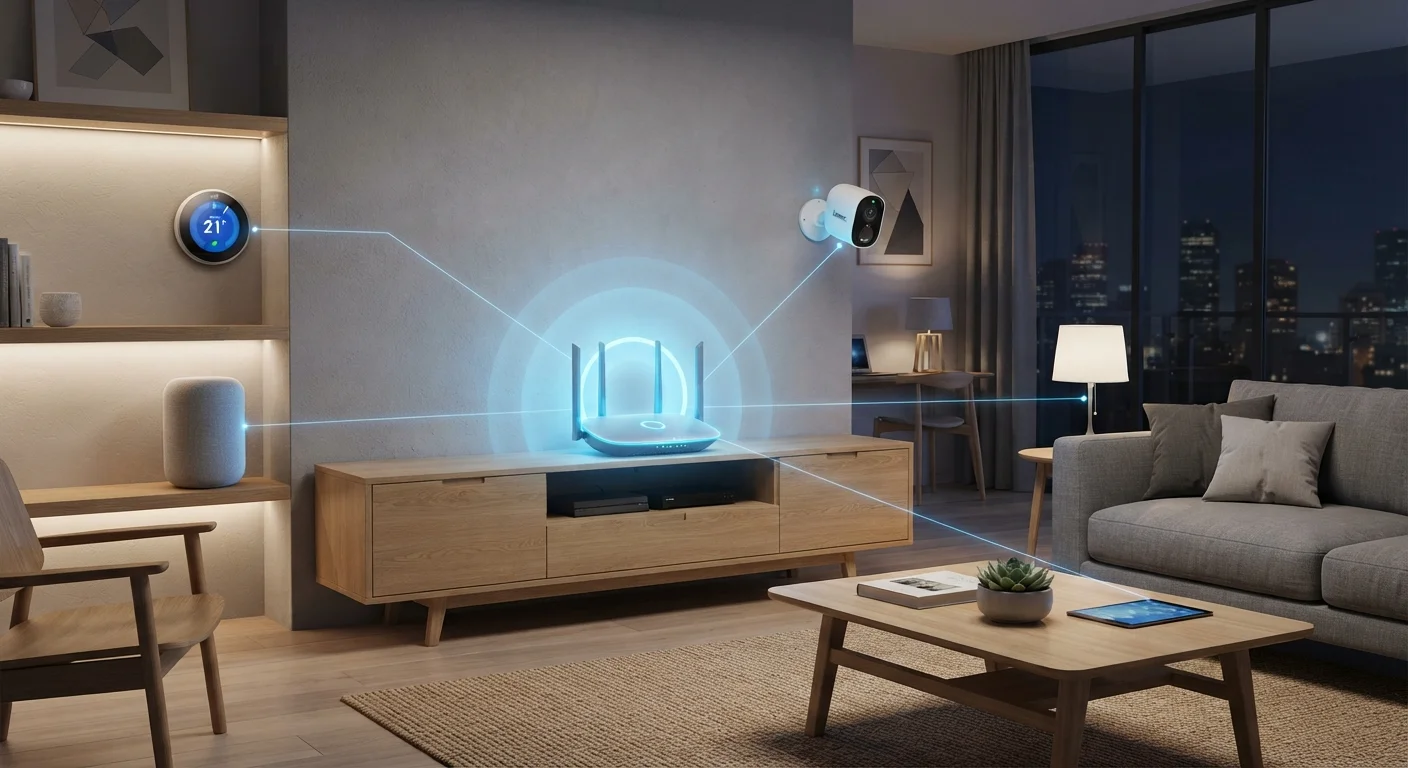
Photo: UnlockTopics.com | Unlocking Trending Content editorial
Key Takeaways
- Your router, not individual smart devices, determines whether your connected home works reliably.
- Wi-Fi signal strength and network congestion are the two most common causes of smart device failures.
- Older routers may not support the number of simultaneous connections a modern smart home requires.
- Separating smart devices onto a dedicated network segment can improve both performance and security.
- Understanding your network basics helps you troubleshoot problems without guessing.
Why Your Network Comes Before Every Other Smart Home Decision
People often add smart devices to their home one by one — a connected speaker here, a smart thermostat there — without thinking about the network underneath. Then they wonder why devices drop offline, automations misfire, or setup never quite finishes. The network is the reason.
Every smart device you own communicates through your home's Wi-Fi or a wired connection. When that foundation is weak, inconsistent, or overloaded, the devices built on top of it behave unpredictably. Buying more capable gadgets won't fix a router that can't support them.
Think of your home network as plumbing. You can install the most sophisticated fixtures imaginable, but if the pipes are undersized or the water pressure is poor, nothing works as designed. Getting the network right first is one of the most practical things you can do before expanding your connected home. For a broader picture of what else to consider before buying, see what first-time smart home owners should know.
~25
Average connected devices per US household
According to Deloitte's Digital Media Trends survey, the average American household has roughly 25 internet-connected devices — a number that has grown steadily with smart home adoption.
2.4 GHz vs 5 GHz
The two main Wi-Fi frequency bands
The 2.4 GHz band offers longer range but lower speeds; 5 GHz delivers faster speeds over shorter distances. Many smart devices default to 2.4 GHz for its broader reach.
~30%
Smart home issues traced to Wi-Fi problems
Industry support data commonly points to Wi-Fi signal quality and network configuration as the leading causes of smart home device failures, rather than the devices themselves.
The Two Components That Actually Run Your Network
Most households have two pieces of hardware doing the heavy lifting: a modem and a router. Your modem is provided by or purchased through your internet service provider (ISP). It translates the signal from outside — whether cable, fiber, or DSL — into something your home network can use. Your router then takes that connection and distributes it to all your devices, wirelessly via Wi-Fi or through physical Ethernet cables.
Many ISPs supply a single device that combines both functions, often called a gateway. While convenient, these combination units frequently underperform in larger homes or busier households. A standalone router typically offers more control, better coverage options, and stronger performance.
The router's job is more complex than it appears. It assigns each device an address, manages how traffic flows between devices, and enforces basic security. When you have 15 or 20 devices competing for attention — phones, tablets, smart TVs, cameras, and sensors — your router is coordinating all of it. Understanding wireless protocols used by those devices is also worth your time: learn how Wi-Fi, Zigbee, and Z-Wave differ.
Restart Your Router Monthly
Signal Strength, Dead Zones, and Why They Matter
Wi-Fi signals weaken with distance and struggle to pass through dense walls, floors, and metal surfaces. A device in a corner bedroom or a basement may sit right at the edge of reliable coverage — functional most of the time, but prone to dropping connections under load or interference.
Smart home devices are particularly sensitive to this because they often need to stay persistently connected, not just when you're actively using them. A smart lock that loses its connection at the wrong moment, or a security camera that buffers during a critical alert, defeats the purpose of having the device at all.
If your home has dead zones, a Wi-Fi extender can help in simple cases. For larger homes or multi-story layouts, a mesh network system — which uses multiple access points working together — provides more consistent coverage without requiring you to switch between separate networks as you move around. This is explained in more depth in the complete guide to building a connected home.
Security and Segmentation: Protecting What You've Connected
Every device added to your home network is a potential entry point. Smart home hardware — from budget sensors to name-brand cameras — varies significantly in how regularly it receives software security updates. A device that stops receiving updates becomes a vulnerability over time.
One practical way to reduce this risk is network segmentation: placing smart home devices on a separate network from the devices you use for banking, work, and personal communications. Many modern routers support a guest network that can serve this purpose, or more advanced setups use VLANs to create isolated segments.
Strong, unique passwords for both your router's admin panel and your Wi-Fi network are also essential. The default credentials on a router are often publicly known and should be changed immediately on setup. For households with smartphones and tablets that connect to the same network, understanding how your devices interact with your home Wi-Fi is equally important — see how phones switch between mobile data and Wi-Fi.
Not All Routers Support Network Segmentation
Frequently Asked Questions
The content on this site is for informational purposes only and is not a substitute for professional advice. Always consult a qualified professional for guidance specific to your situation.