The Peripheral Glossary: Every Computer Accessory Term, Defined

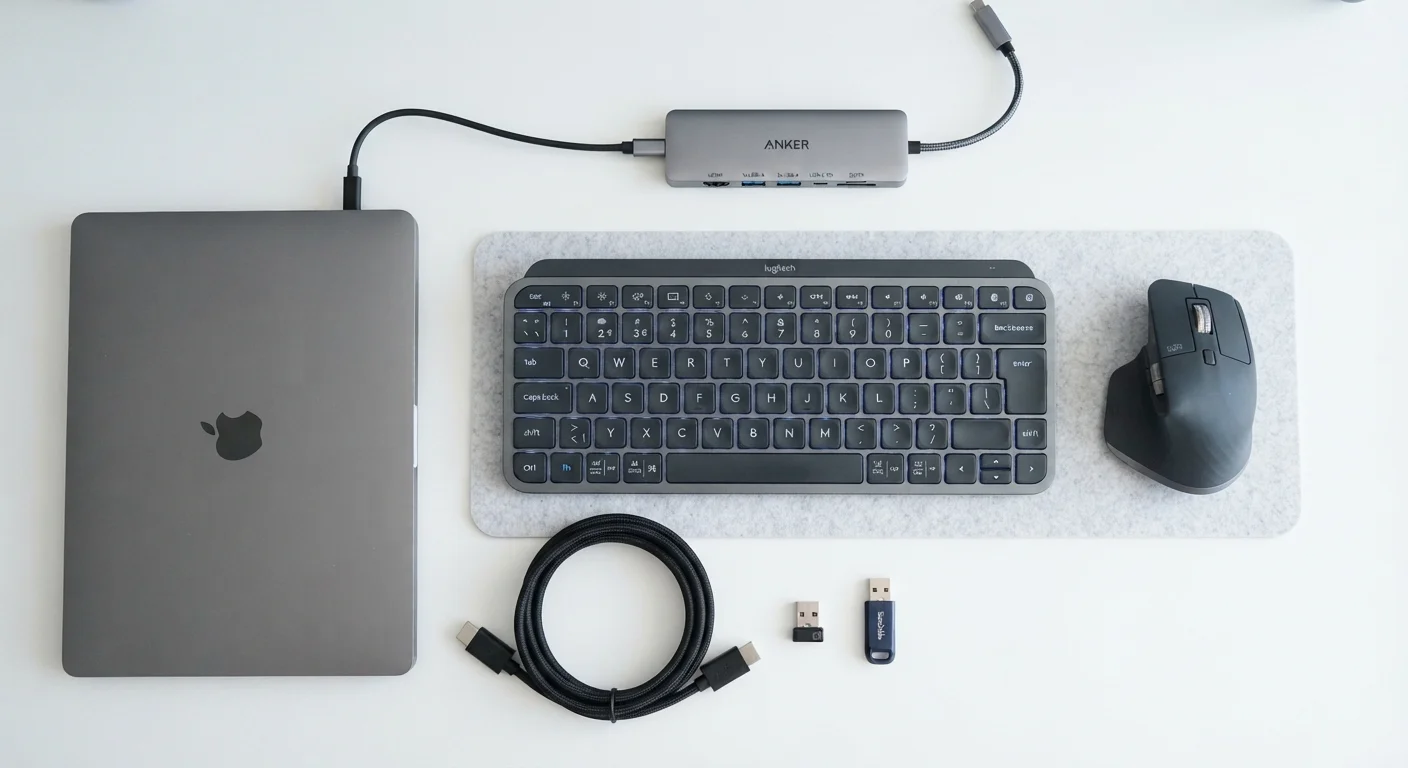
Photo: UnlockTopics.com | Unlocking Trending Content editorial
Why Peripheral Terminology Matters
Shopping for a monitor arm, reading a laptop spec sheet, or trying to figure out why your USB drive won't connect — in each case, the right vocabulary saves time and prevents costly mistakes. The word peripheral refers to any device that connects to a computer but isn't the computer itself. Peripherals expand what your machine can do: they add input, output, storage, or connectivity.
This glossary covers the terms that appear most often when you're researching or setting up a computer workspace. For a deeper look at how cables and ports fit together, see our guide to ports, hubs, and docks.
Peripheral
Any external device that connects to a computer to expand its functionality. Examples include keyboards, mice, monitors, and printers.
USB hub
A device that multiplies a single USB port into several, letting multiple accessories share one connection point on the computer.
Docking station
A connectivity base that connects to a laptop via a single cable and provides multiple ports — video, USB, ethernet, and audio — all at once.
Dongle
A small plug-in adapter that converts one port type to another, such as USB-C to HDMI or USB-A to USB-C.
Refresh rate
How many times per second a monitor updates its image, measured in hertz (Hz). Higher rates produce smoother motion on screen.
DPI
Dots per inch — a measure of mouse cursor sensitivity. A higher DPI setting moves the cursor farther with less physical movement of the mouse.
External SSD
A portable solid-state storage drive that connects via USB or Thunderbolt, used for fast file transfers or as a backup destination.
NAS
Network Attached Storage — a dedicated storage device connected to a local network, allowing multiple computers and devices to access shared files.
KVM switch
A Keyboard-Video-Mouse switch lets a single keyboard, monitor, and mouse control two or more computers by toggling between them.
Bus-powered
A device that draws all its operating power directly from the USB connection rather than requiring its own power adapter.
Panel type
The underlying display technology in a monitor — such as IPS, TN, or OLED — which determines color accuracy, viewing angles, and response time.
Aspect ratio
The proportional width-to-height relationship of a display. Common ratios are 16:9 for standard widescreen and 21:9 for ultrawide monitors.
Display and Monitor Terms
Monitors are among the most impactful peripherals you can add to any workspace. Understanding their specs helps you evaluate what you're actually getting.
| Standard widescreen aspect ratio | 16:9 |
| Common entry-level monitor refresh rate | 60 Hz |
| Full HD resolution | 1920 × 1080 pixels |
| 4K UHD resolution | 3840 × 2160 pixels |
| Thunderbolt 4 max data transfer speed | 40 Gbps (Intel specification) |
| USB 3.2 Gen 2 max transfer speed | 10 Gbps (USB Implementers Forum) |
- Resolution — The number of pixels displayed, expressed as width × height (e.g., 1920×1080). Higher resolution means sharper images, but also demands more from your computer's graphics hardware.
- Refresh rate — How many times per second the screen redraws its image, measured in hertz (Hz). A 60 Hz display redraws 60 times per second; 144 Hz is common for smoother motion.
- Panel type — The underlying display technology. IPS panels offer wide viewing angles and accurate color; TN panels are faster and less expensive; OLED panels produce deeper blacks and higher contrast.
- Aspect ratio — The proportional relationship between a screen's width and height. 16:9 is the standard widescreen ratio; ultrawide monitors often use 21:9.
- Monitor arm — A adjustable mount that attaches a monitor to a desk or wall, freeing up surface space and improving ergonomic positioning. See how monitor arms improve comfort for more.
Connectivity Accessories: Hubs, Docks, and Dongles
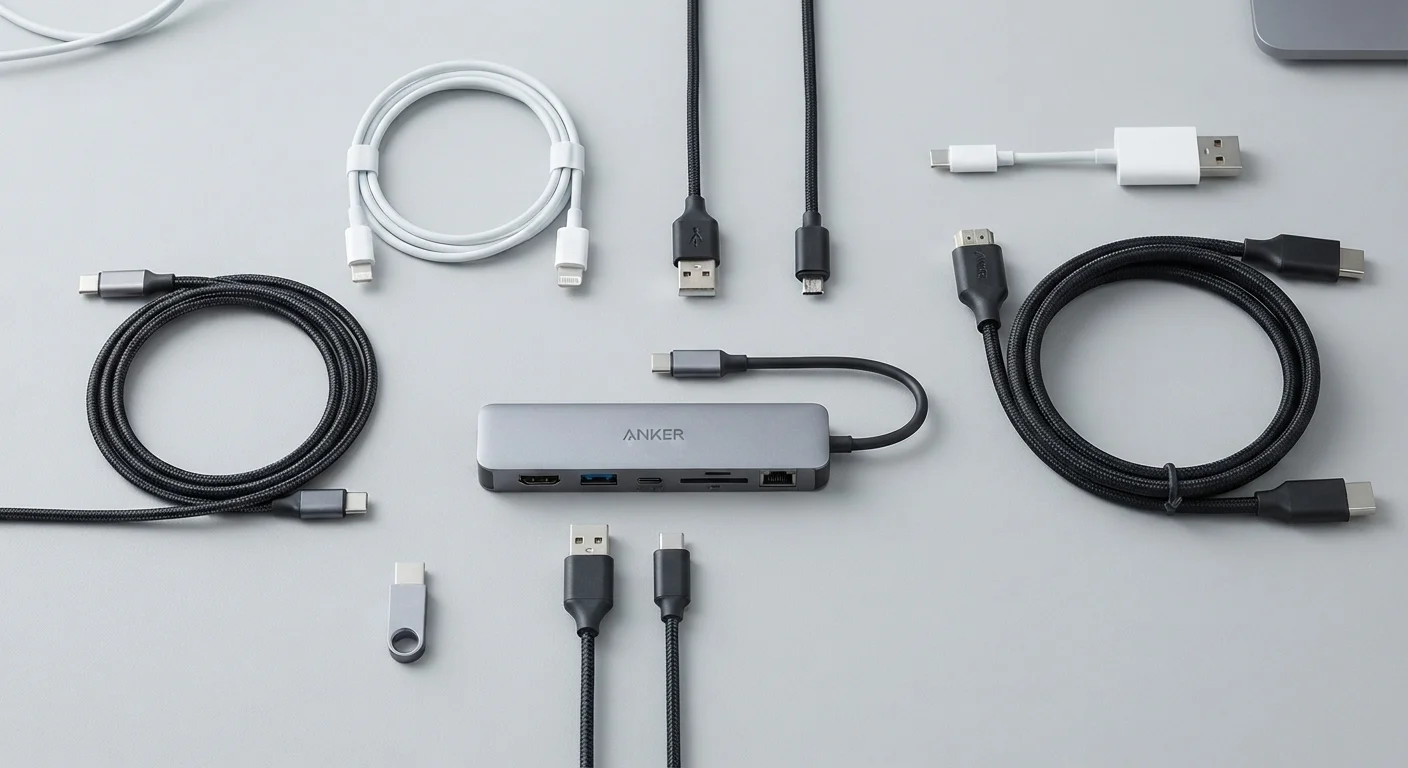
Connectivity accessories bridge the gap between your computer's available ports and the devices you want to use. These three terms are often confused.
Docks vs. Hubs: The Practical Difference
- USB hub — A device that expands one USB port into several, allowing multiple accessories to connect simultaneously. Hubs are typically bus-powered (drawing power from the computer) or self-powered (using their own adapter).
- Docking station (dock) — A more comprehensive hub that typically adds video outputs, ethernet, audio, and multiple USB ports through a single cable connection. Docks are common with laptops used at a desk.
- Dongle — A small adapter that converts one port type to another (e.g., USB-C to HDMI, or USB-A to USB-C). The term is informal but widely used.
- KVM switch — Short for Keyboard-Video-Mouse switch. A device that lets one set of input peripherals control multiple computers.
For a full breakdown of port types — USB-A, USB-C, Thunderbolt, HDMI — visit our ports and docks explainer.
Input Device and Storage Terms
Input devices are peripherals you use to send information to your computer. Storage peripherals hold data that moves between devices or provides backup.
- Mechanical keyboard — A keyboard using individual physical switches under each key, valued for tactile feedback and durability.
- Membrane keyboard — A keyboard using a pressure-sensitive layer beneath the keys, generally quieter and less expensive than mechanical designs.
- DPI (dots per inch) — A measure of mouse sensitivity. Higher DPI means the cursor moves farther per inch of physical mouse movement.
- External SSD — A solid-state drive in a portable enclosure. Faster and more durable than older spinning hard drives, used for file transfers and backup storage.
- NAS (Network Attached Storage) — A storage device connected to a home network rather than directly to one computer, making files accessible to multiple devices. This is distinct from cloud storage, which is managed by an outside service provider.
- Webcam — A standalone camera peripheral designed for video calls and conferencing, as opposed to the integrated camera in a laptop lid.
Readers interested in smartphone and tablet accessories will find parallel glossary concepts in our mobile camera glossary.
The content on this site is for informational purposes only and is not a substitute for professional advice. Always consult a qualified professional for guidance specific to your situation.