The Overlooked Accessories That Make Daily Computer Use Far More Comfortable

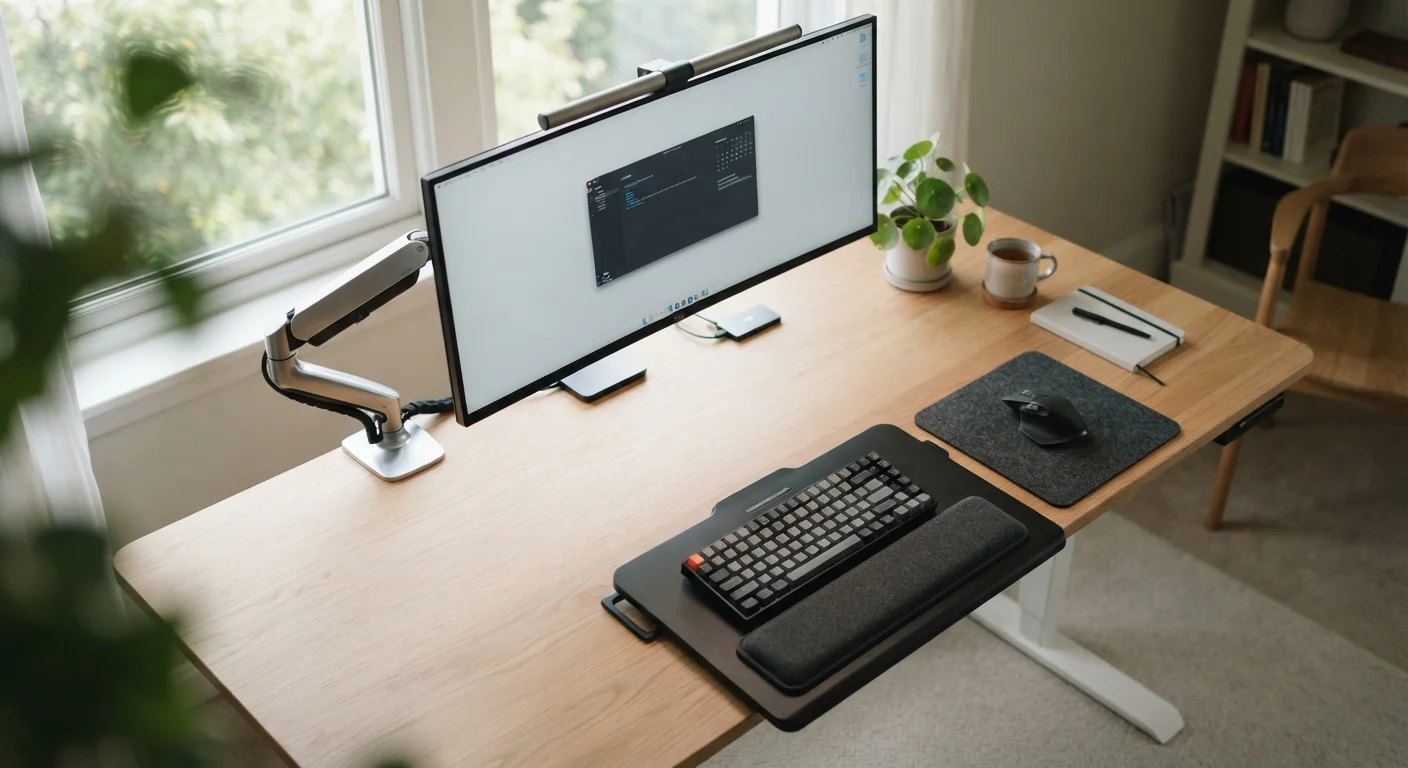
Photo: UnlockTopics.com | Unlocking Trending Content editorial
Key Takeaways
- Monitor arms let you position your screen at true eye level, reducing neck and shoulder strain significantly.
- Wrist rests and keyboard trays work together to keep your hands in a neutral, less stressful position.
- USB hubs and cable management tools reduce desk clutter and help you stay focused longer.
- Most ergonomic accessories cost far less than a new chair or desk yet deliver immediate comfort improvements.
- Even small posture adjustments can reduce fatigue during long work-from-home sessions.
Why Your Setup Matters More Than Your Hardware
Most people spend time thinking about their computer's processor speed or storage capacity — and far less time thinking about how they physically interact with that machine every day. Yet the accessories surrounding your computer often have a bigger effect on how you feel after a four-hour session than the specs inside the machine itself.
Discomfort from a poorly positioned monitor or an awkward keyboard angle tends to build slowly. You might notice a stiff neck at the end of the week, or a vague ache in your wrists that you chalk up to stress. In many cases, the cause is something much more fixable. If you're unfamiliar with accessory terminology, the Peripheral Glossary is a useful starting point before diving in.
The following accessories are consistently overlooked — not because they're obscure, but because they don't come with the computer and rarely get marketing attention. Each one addresses a specific, real discomfort that desk workers encounter regularly.
Monitor Arm
A monitor arm replaces your display's fixed stand and lets you position the screen at exactly the right height, distance, and angle. Most people using a standard stand end up looking slightly downward or tilting their neck to one side — neither of which the body handles well over hours.
With an arm, your screen can sit at true eye level, pulled closer when reading dense text and pushed back when video calling. Many arms also free up significant desk surface area, which reduces clutter-related distraction. Look for arms that support the weight range of your monitor and clamp securely to your desk thickness.
Positioning your screen at true eye level is one of the most effective things you can do for neck health at a desk.
Wrist Rest
A wrist rest is a padded support that sits in front of your keyboard or mouse pad. Its purpose is to keep your wrists in a neutral, flat position rather than bent upward while you type or click — a posture that, sustained over time, creates tension in the tendons of the forearm.
Wrist rests come in memory foam, gel, and firm foam varieties. The right choice depends on your typing style and how much you rest your wrists during pauses versus only between bursts of typing. Those who type continuously may benefit more from a firmer surface; those who rest frequently during work often prefer a softer gel option.
Keeping wrists neutral while typing reduces forearm tension that accumulates invisibly across a workday.
Keyboard Tray
A keyboard tray mounts underneath your desk surface and pulls out at a lower height than a standard desktop. This matters because most desks are built to a height suitable for writing by hand — which is higher than what's ergonomically appropriate for typing. The result is that typing on a desk surface often requires you to raise your shoulders slightly, which leads to muscle fatigue.
With a keyboard tray, your elbows can rest at roughly 90 degrees with your forearms parallel to the floor. Some trays also tilt negatively (away from you at a slight downward angle), which many ergonomists consider the ideal keyboard position for reducing wrist extension.
Standard desk height is designed for handwriting, not typing — a keyboard tray corrects this mismatch directly.
USB Hub or Dock
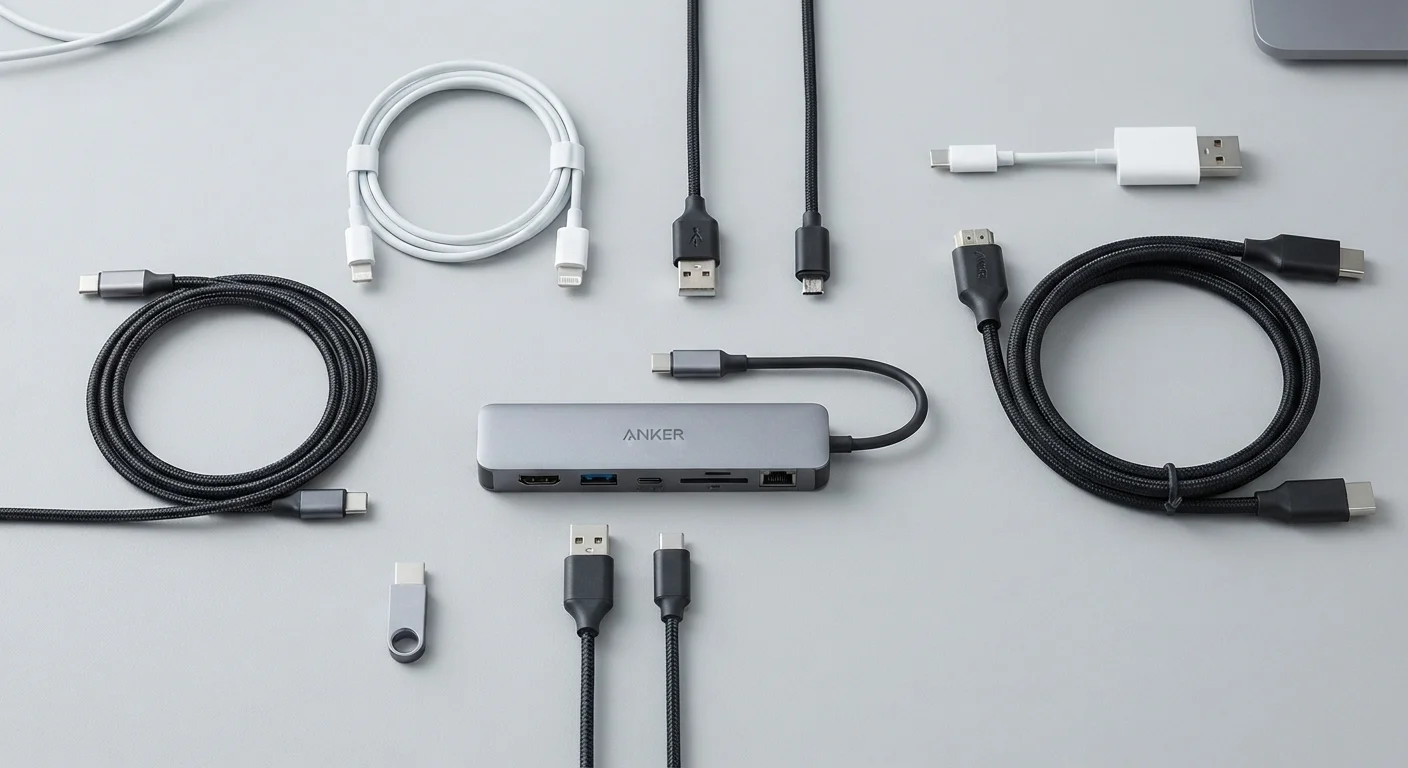
Modern laptops in particular come with a limited number of ports — often just one or two USB-C connections. A USB hub (a compact device that expands one port into several) or a docking station (a more capable version that also handles video output and charging) solves this without requiring you to constantly swap cables.
Beyond convenience, having a hub means you can connect your keyboard, mouse, external drive, and monitor through a single cable to your laptop. This dramatically simplifies the process of switching between a portable setup and a full desk setup, which matters a great deal for people who work from multiple locations. For a fuller explanation of the difference between hubs and docks, the Peripheral Glossary breaks it down clearly.
A USB hub or dock turns a port-limited laptop into a fully connected desk workstation with one cable.
Cable Management Clips and Trays
Loose cables hanging off a desk, tangled behind a monitor, or trailing across the floor are a low-level source of stress that most people don't consciously register — until the cables are gone. Cable management clips, adhesive raceways, and under-desk trays route your power and data cables out of sight and out of the way.
A tidy desk has a measurable effect on focus. Visible clutter — even background clutter — occupies a portion of your attention. Routing cables cleanly also reduces tripping hazards and makes it easier to clean your workspace, which in turn keeps the desk a more inviting place to sit. This connects naturally to the broader idea of upgrades that change how a space feels day-to-day.
Visible cable clutter occupies background attention — removing it has a quiet but real effect on focus.
Document Holder
If you regularly reference physical documents, books, or printed notes while working, a document holder — a small stand or clip that positions paper at screen height beside your monitor — prevents a repetitive motion that causes more strain than people expect: looking down at the desk, then back up at the screen, hundreds of times a day.
This constant shift in head angle and focus distance tires both your neck muscles and your eyes. A document holder eliminates the downward glance entirely by keeping reference material in the same visual plane as your screen. It's a niche item, but for anyone who splits time between paper and screen, it's one of the most immediately noticeable improvements on this list.
Looking down at paper and back up to your screen dozens of times an hour quietly strains your neck and eyes.
Putting It All Together
You don't need to overhaul your entire workspace at once. Adding even one or two of these accessories can produce a noticeable shift in how your body feels by the end of the day. Start with whichever discomfort bothers you most — neck strain, wrist fatigue, or eye-level misalignment — and address it directly.
Start With One Change at a Time
If you're also thinking about broader workspace improvements, organizing a home office that stays functional covers the structural side of keeping a desk working well under daily use. And if you're interested in reducing extended sitting time, small adjustments that reduce sitting offers practical, low-effort approaches that pair naturally with a better-equipped desk.
The content on this site is for informational purposes only and is not a substitute for professional advice. Always consult a qualified professional for guidance specific to your situation.