Setting Up a New Computer the Right Way

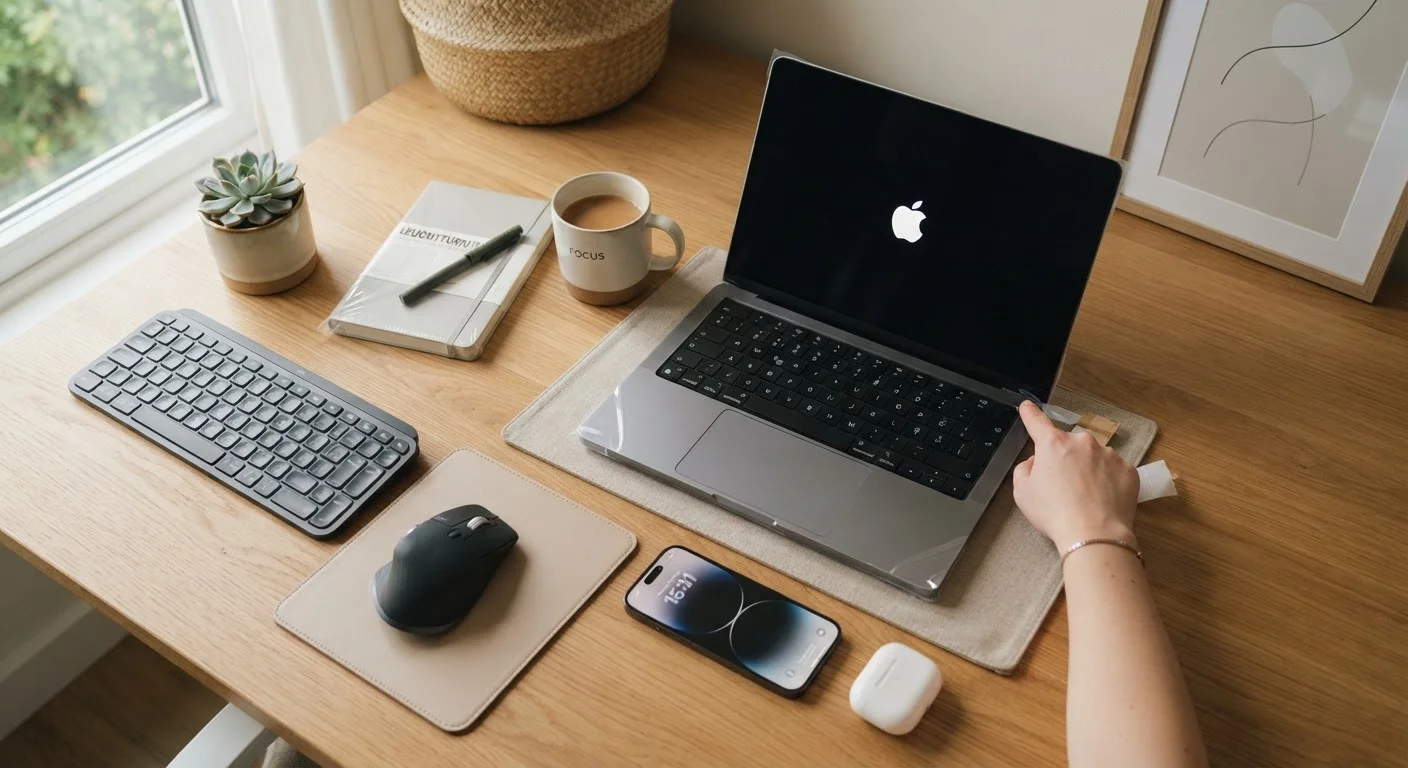
Photo: UnlockTopics.com | Unlocking Trending Content editorial
Key Takeaways
- Running software updates immediately after first boot closes security vulnerabilities before they can be exploited.
- Creating a standard user account for daily use — rather than an admin account — reduces the risk of accidental system changes.
- Installing a password manager from day one builds a secure, sustainable habit that protects all future accounts.
- Reviewing privacy settings early ensures your data isn't shared with services you didn't knowingly opt into.
- A simple backup system set up on day one protects your files before anything goes wrong.
Why First-Boot Decisions Matter More Than You Think
Unboxing a new computer feels exciting, but the temptation to skip straight to browsing or downloading apps can lead to a machine that's slower, less secure, and harder to maintain from week one. A methodical setup — one that takes an hour or two rather than five minutes — pays dividends for years.
If you're still deciding between a laptop and a desktop, our guide to laptop vs. desktop trade-offs can help you think through that first. And if this is your very first computer, the complete first-timer's guide to computers will give you the foundational vocabulary to make sense of every step below.
This guide walks through setup in the order that matters — security first, personalization second.
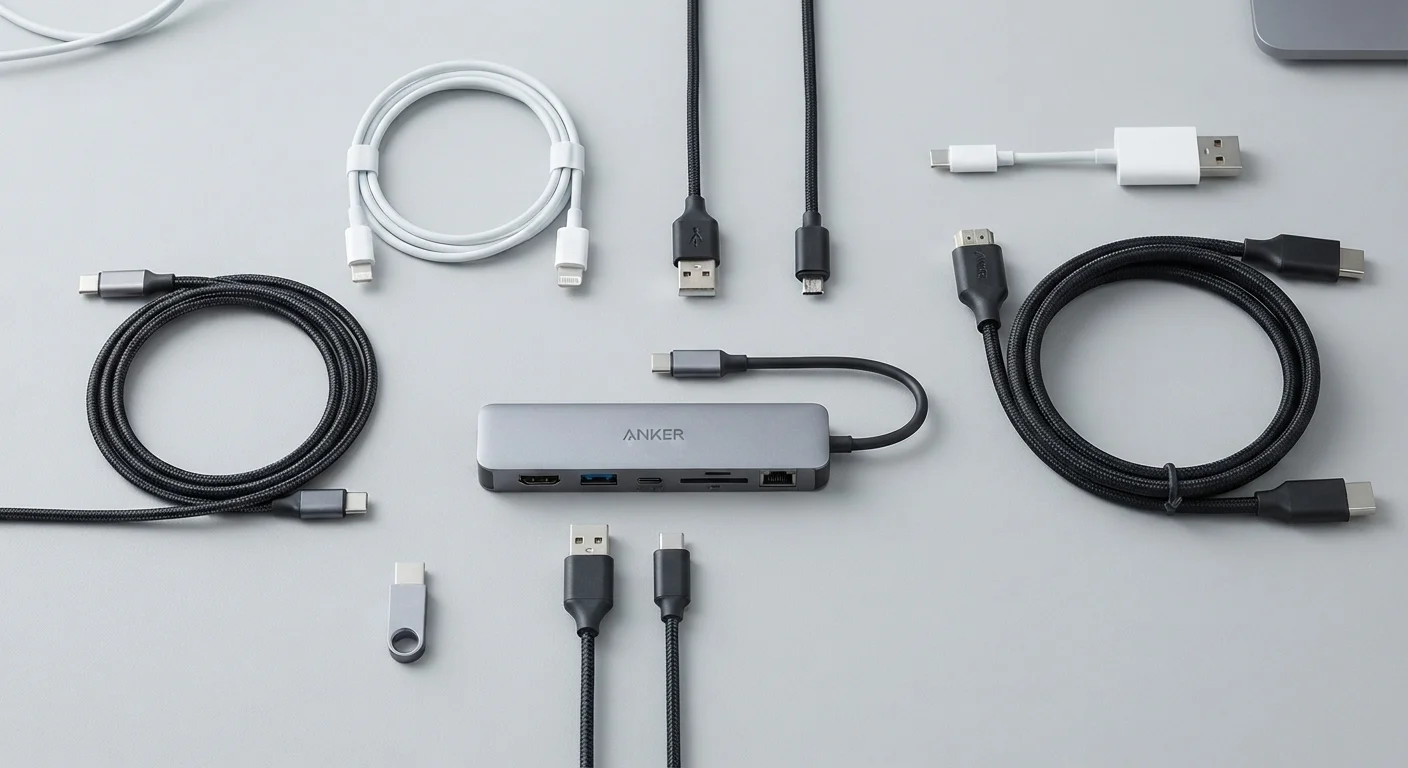
What you will need
Step-by-Step: Setting Up Your New Computer
Follow these steps in order. Skipping ahead — especially past updates and account setup — leaves gaps that are much harder to close later.
Complete the Initial Setup Wizard Carefully
Both Windows and macOS walk you through a setup wizard on first boot. Read each screen before clicking through. Key decisions include your region and language, your keyboard layout, whether to create a local account or sign into a cloud account, and which optional data-sharing settings to enable. Unchecking broad telemetry or advertising options here is easier than finding them later in settings menus.
Run All Available System Updates
Before doing anything else, check for operating system updates. On Windows, go to Settings > Windows Update. On macOS, open System Settings > General > Software Update. Install everything available and restart if prompted. Repeat until no further updates appear — it sometimes takes two or three rounds.
This step closes security vulnerabilities that existed between when your computer was manufactured and when you first turned it on.
Create a Standard User Account for Daily Use
The account created during setup is typically an administrator account — it has full permission to install software and change system settings. Using it daily increases the chance that malware or accidental clicks cause serious damage. Create a second, standard user account for everyday tasks, and reserve the admin account for intentional changes only.
On Windows: Settings > Accounts > Family & other users > Add account. On macOS: System Settings > Users & Groups > Add Account.
Install a Password Manager
A password manager generates, stores, and autofills strong, unique passwords for every site and app you use. Install one before you start logging into any online accounts on this new machine. Most password managers offer browser extensions that work across all major browsers.
Once installed, import any saved passwords from your old device or browser, and enable two-factor authentication (2FA) on the password manager itself for an extra layer of protection.
Review Privacy and Location Settings
Operating systems collect various types of usage data by default — diagnostics, location, advertising identifiers, and more. Spend ten minutes reviewing these settings and adjusting them to your comfort level.
On Windows: Settings > Privacy & security. On macOS: System Settings > Privacy & Security. Pay attention to which apps have permission to access your camera, microphone, contacts, and location.
Set Up Automatic Backups
A backup system protects everything you create on this computer. Set one up before you start adding files, not after. On Windows, use File History to back up to an external drive. On macOS, Time Machine provides automatic, incremental backups to an external drive. Cloud storage services can supplement — but not replace — a local backup for most users.
The rule of thumb used by IT professionals is the 3-2-1 approach: three copies of your data, on two different types of media, with one stored off-site (such as in cloud storage).
Common Mistakes to Avoid
Even careful users trip over a few consistent setup pitfalls.
- Skipping the Microsoft or Apple account prompt: You can usually create a local account instead, which keeps more of your data off third-party servers. Look for the "offline account" or "limited experience" option during setup.
- Ignoring pre-installed software: New computers often come with trial software, games, or manufacturer utilities you don't need. Uninstall anything you won't use — it frees up storage and reduces background activity.
- Using the same password everywhere: This is one of the most common — and most damaging — habits in computing. A password manager eliminates the need to remember unique credentials for every account.
Don't Trust Pop-Ups Claiming Your PC Is Infected
Once your computer is running smoothly, the next challenge is keeping it that way. Our article on keeping a computer running well for years covers the maintenance habits that prevent slowdowns and extend hardware life.
The content on this site is for informational purposes only and is not a substitute for professional advice. Always consult a qualified professional for guidance specific to your situation.