Computers from Scratch: A First-Timer's Complete Guide

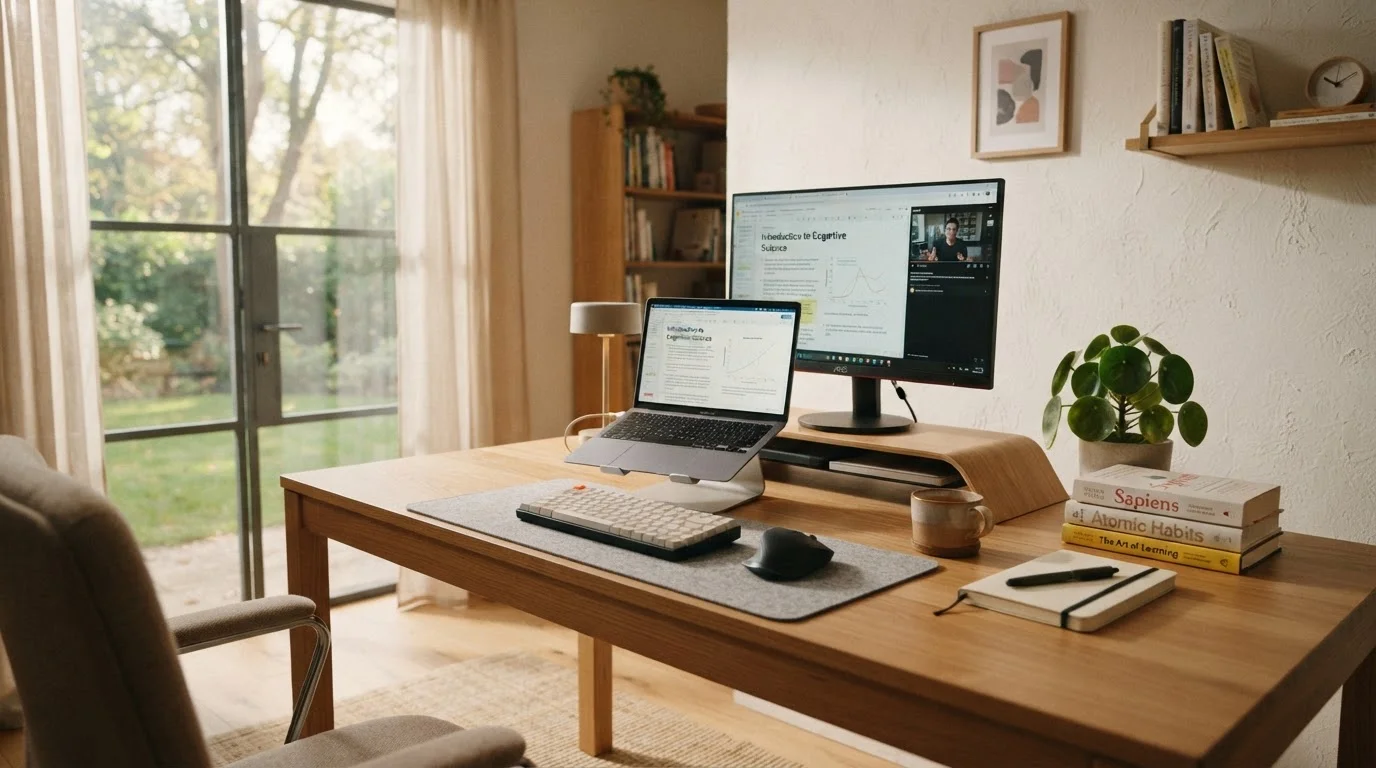
Photo: UnlockTopics.com | Unlocking Trending Content editorial
Key Takeaways
- A computer has two fundamental layers: hardware (physical components) and software (programs and instructions).
- The three main computer types — desktop, laptop, and tablet — each suit different usage patterns.
- Key specs like RAM, storage, and processor speed directly affect everyday performance.
- The operating system is the master program that controls everything else on your device.
- Accessories such as monitors, keyboards, and routers expand what your computer can do.
- Knowing your actual daily tasks helps you choose the right type and configuration.
What a Computer Actually Is
A computer is a device that takes in information, processes it according to instructions, and produces a result. That sounds abstract, so think of a concrete example: when you type a message, the keyboard sends input, the computer processes it using your word processor program, and text appears on screen. Every computer task follows that same basic pattern.
Every computer has two fundamental layers that work together:
- Hardware — the physical components you can touch: the screen, keyboard, internal chips, and cables.
- Software — the programs and instructions that tell the hardware what to do, from the operating system to individual apps.
Neither layer works without the other. Hardware without software is an inert box; software without hardware has nothing to run on.
CPU (Processor)
The central processing unit is the primary chip that carries out calculations and instructions. A more capable processor makes the computer feel faster overall.
RAM
Random Access Memory is temporary working space the computer uses while programs are running. When you close a program, its data leaves RAM.
SSD
A Solid-State Drive is a type of permanent storage that reads and writes data much faster than older mechanical hard drives, resulting in quicker startups and file access.
Operating System
The master software layer — such as Windows or macOS — that manages all other programs and hardware on a computer. It's what you see and interact with from the moment a computer starts up.
Resolution
The number of individual pixels on a display, expressed as width by height (e.g., 1920×1080). More pixels generally means sharper, more detailed images.
Port
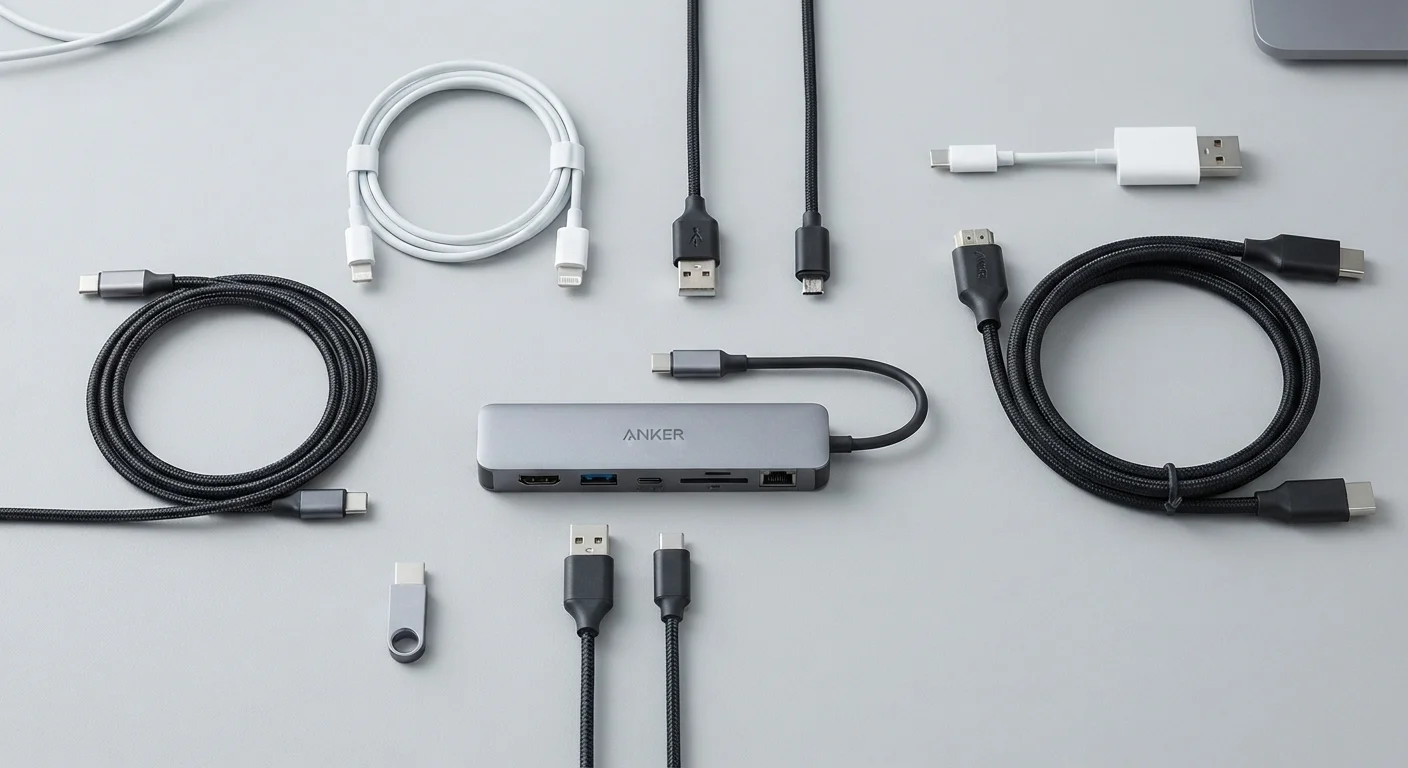
A physical connection point on a computer where you plug in accessories or cables, such as a USB port for a flash drive or an HDMI port for a monitor.
Types of Computers and What They're Built For
Not all computers are built the same way, and the physical form shapes what a machine does well.
Desktops
A desktop sits in a fixed location, typically with a separate monitor, keyboard, and mouse. The internal components tend to be more powerful for the price, and many desktops can be upgraded over time — swapping in more RAM or a larger drive.
Laptops
A laptop folds the screen, keyboard, and computer into one portable package. It runs on a battery, so you can use it away from a power outlet. The trade-off is that most laptops are harder to upgrade and can run warmer during demanding tasks.
Tablets
Tablets are touchscreen devices that prioritize portability and simplicity. They excel at media consumption, light productivity, and casual browsing, but many have limited multitasking ability and restricted access to full desktop software.
Match the Form to Your Lifestyle
Hardware: The Physical Parts That Matter
When you look at computer specifications, several components appear repeatedly. Here's what each one actually does for you day-to-day.
- Processor (CPU)
- The central processing unit is the brain of the machine. A faster processor handles more calculations per second, which means snappier performance when juggling multiple tasks or running complex programs.
- RAM
- Random Access Memory is the computer's short-term workspace. When you have several browser tabs and a document open simultaneously, RAM is what keeps them all running without slowdowns. More RAM generally means smoother multitasking.
- Storage (HDD vs. SSD)
- Storage holds your files and installed programs permanently. Older hard disk drives (HDDs) store more data at lower cost but are slower. Solid-state drives (SSDs) are significantly faster and more durable, which is why most newer computers use them.
- Display
- Screen size is measured diagonally in inches. Resolution describes how many pixels fit on the screen — higher resolution means sharper images and text.
Software and Operating Systems Explained
Software is the collection of programs that makes your hardware useful. The most foundational piece of software is the operating system (OS) — the master program that manages everything else. The three most common operating systems for personal computers are:
- Windows — developed by Microsoft; runs on a wide range of devices and is the most common in homes and offices.
- macOS — developed by Apple; runs exclusively on Apple Mac computers and is known for a consistent, polished interface.
- Chrome OS — developed by Google; runs on Chromebook laptops, designed primarily for online tasks and is notably simple to use.
On top of the operating system, you install applications — the specific programs you use to get things done, such as a web browser, a word processor, or a photo editor. Some applications are installed directly on the device; others run entirely in a web browser without installation.
Cloud vs. Local Software
Accessories That Make a Difference
Accessories extend what your computer can do and often significantly improve comfort during long sessions.
- External monitor — Even laptop users benefit from plugging into a larger screen at home. More screen space means less scrolling and easier side-by-side work.
- External keyboard and mouse — Ergonomic accessories reduce strain during extended typing sessions. Wireless options eliminate cable clutter.
- Router and Wi-Fi adapter — A capable home router is what gives your computer reliable internet access. Speed and signal reach vary significantly between models.
- Headset or speakers — Essential for video calls, online learning, or media.
- USB hub or docking station — Laptops with few ports benefit from a hub that adds multiple connection points at once.
If you're thinking about how your computer fits into a larger home setup, the Home Tech Basics hub covers everyday home electronics in plain language.
What to Think About Before Getting Started
Before anything else, be honest about your daily tasks. Browse the internet and check email? Watch videos? Write documents? Run specialized programs for work or school? Each use case has different hardware requirements, and knowing yours prevents overspending on power you won't use — or underspending on a machine that can't handle your workload.
A few practical questions to guide your thinking:
- Where will I use this most — at a desk, on the go, or both?
- Will I need to run specific programs that only work on certain operating systems?
- How much storage do I realistically need for photos, videos, and documents?
- Am I comfortable setting things up myself, or do I want something ready to use immediately?
Once you've thought through those questions, the next step is configuration. Our new computer setup guide covers everything from the first power-on to privacy settings and updates. And if managing the cost of a new device is on your mind, a personal budget guide can help you plan the purchase thoughtfully.
Don't Overlook Long-Term Usability
Frequently Asked Questions
The content on this site is for informational purposes only and is not a substitute for professional advice. Always consult a qualified professional for guidance specific to your situation.